Connect your Apaleo account to BetterSTR in one click with Connect with Apaleo. Every hotel and every room becomes its own BetterSTR property, so each guest gets a personal digital guidebook and the TV in their room welcomes them by name. The Apaleo connection is new and marked beta: if anything looks wrong, email support@betterstr.com and we’ll look at your account with you.
Before you start
- You need a BetterSTR account. Create one free if you don’t have one yet.
- You need an Apaleo login that can see the properties you want to connect. You don’t have to be an account admin, as long as your Apaleo role covers the permissions listed below.
- BetterSTR can only be connected to one PMS at a time. If you’re on another integration, disconnect it first.
Step 1: Connect with Apaleo
- In BetterSTR, go to Integrations → Apaleo.
- Click Connect with Apaleo.
- Sign in with your Apaleo login.
- On Apaleo’s consent screen, choose which properties BetterSTR may see: just some, or all current and future properties. Check the permissions and click Agree.
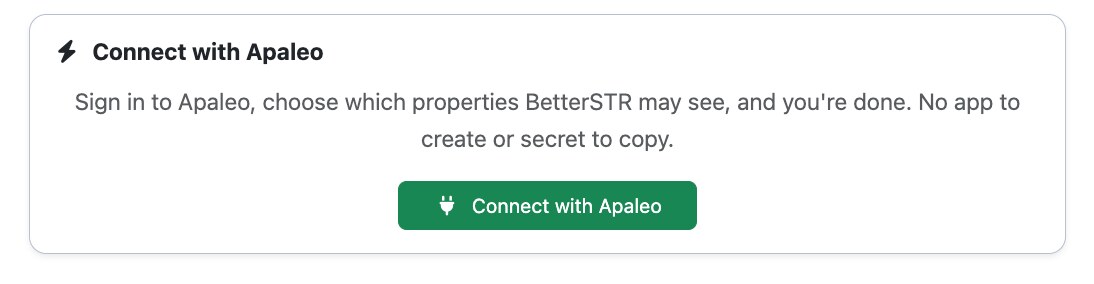
You come back to BetterSTR connected. We check the connection straight away, then import your hotels and rooms, import reservations from 30 days ago to a year ahead, and set up instant updates. There’s no app to create in Apaleo and no secret to copy.
Step 2: Switch on your rooms
Each Apaleo hotel and each unit (room) shows up as its own property, so the TV in Room 101 welcomes the guest staying in Room 101.
- Rooms start switched off. Turn on the rooms that have a TV or should get guides, then click Update Selected. Their reservations sync straight away. Select All switches on everything.
- The hotel itself is listed too. It holds reservations that don’t have a room yet. Switch it on if those guests should get their guide before a room is assigned. When Apaleo assigns the room, the reservation moves to it.
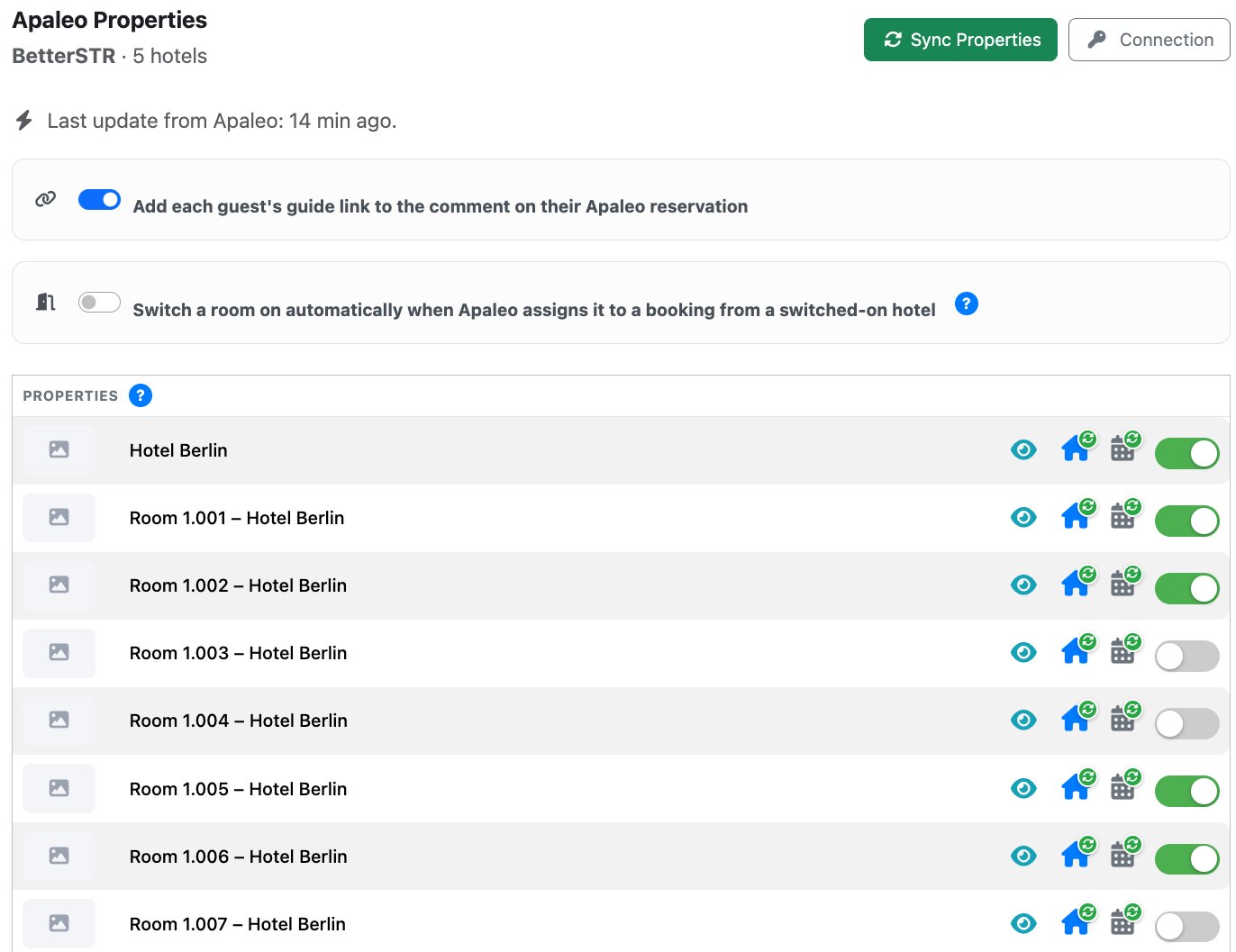
Only switched-on properties send guides, show on the Reservations page and appear on TVs, so running a pilot with a few rooms is easy: switch on just those.
Add your photos, WiFi and check-in times
Apaleo doesn’t share photos, WiFi details or check-in and check-out times. BetterSTR uses 3pm and 11am until you set your own on each property, or for every property in Property Defaults.
Enter your WiFi name and password once in BetterSTR to power the WiFi QR code. Syncs never overwrite them.
Optional settings
Add each guest’s guide link to the comment on their Apaleo reservation (off by default). Adds one line, BetterSTR guest guide: <link>, to the reservation comment so your front desk can see and share it. The rest of the comment is left as it is, and the line is never added twice. The comment is for your staff: guests get their guide by your BetterSTR email and SMS rules.
Switch a room on automatically when Apaleo assigns it to a booking from a switched-on hotel (off by default). If a reservation that sat on your switched-on hotel is assigned a room that’s switched off, BetterSTR switches that room on, so the guest keeps their guide and TV welcome. Leave it off to keep only the rooms you chose switched on, for example a pilot.
How syncing works
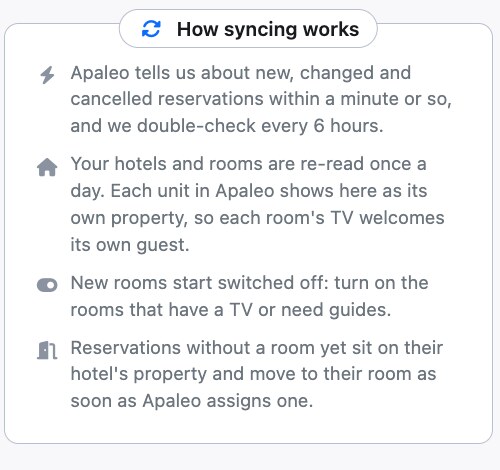
- Instant updates: Apaleo tells BetterSTR about new, changed, cancelled and room-assigned reservations, usually within a minute.
- Safety check every 6 hours: BetterSTR reads everything changed since the last check, in case an update was missed.
- Daily: your hotels and rooms are re-read, so new rooms and name changes come across.
- Sync buttons on the Apaleo page re-read on demand: Sync Properties, Sync Reservations, and Full Sync (3 years of history).
BetterSTR reads your account name, your hotels (name, address, time zone), your rooms, and reservations (dates and times, status, channel, adults and children, the primary guest’s name, email and phone, and the room). It never creates, changes or cancels reservations, and never posts charges.
Permissions BetterSTR asks for
core.current_account.read,core.properties.read,core.units.read,core.reservations.read: read your account, hotels, rooms and reservations.core.reservations.modify: add the guide link to the reservation comment, only when you switch that on.webhook.subscriptions.read,.create,.modify,.delete: set up, repair and remove our instant-update subscription.
Disconnecting
On the Apaleo page in BetterSTR, choose Disconnect in the left menu. BetterSTR deletes its webhook subscription in Apaleo, gives up its access, and removes the synced Apaleo properties and reservations from your account. You can also remove BetterSTR in Apaleo under Apps → Connected apps; BetterSTR then shows Apaleo as needing to reconnect.
Troubleshooting
“Apaleo connected, but BetterSTR was not given access to any of your properties.” Connect again and select your properties on Apaleo’s consent screen.
A reservation is missing. Check its room is switched on, then click Sync Reservations on the Apaleo page.
“Instant updates are off.” Click Try again on the Apaleo page. Reservations still sync every 6 hours meanwhile. Contact support if it keeps failing.
“Apaleo stopped accepting our app.” The Apaleo user who connected lost access, or BetterSTR was removed in Apaleo. Click Connect with Apaleo again with a user whose role covers the permissions above.