Want your guests to get their guidebook link 2 days before check-in, or a reminder 4 hours before they arrive? An automation rule can send the link into the booking’s conversation in your PMS at exactly the time you choose. This works for Lodgify, Channex, Beds24, RentalWise and SuperHote, and it reaches OTA guests even when you don’t have their real email address or phone number.
When to use this instead of the delivery setting
Lodgify and Channex also have a simpler Message the guest directly setting on the Property Defaults page (see Sending Your Guidebook Link Through Lodgify or Channex). That setting sends one message when the booking is confirmed, which can be months before the stay. Use an automation rule when you want:
- the link sent at a set time before check-in, so it’s fresh in the guest’s inbox when they need it
- different wording for different properties (create one rule per property or tag)
- more variables in your message, such as the property name and check-in time
- reminders closer to arrival, on top of the message sent at booking time
Step 1: Create the rule
- In BetterSTR, open Automations from the menu and click New rule.
- Rule Name: anything that helps you recognise it, e.g. “Guidebook link 2 days before check-in”.
- When this happens (Trigger): choose Any Reservation (Scheduled).
- Which properties: leave All Properties, or pick specific properties or a tag.
- When to send: choose Before check-in, then enter the amount and pick days or hours. For example
2days, or4hours. - How to notify: choose your PMS’s guest message option, e.g. Lodgify guest message. Who receives it is set to The Guest automatically.
- Check the Message (see Step 2), click Preview if you’d like to see it filled in, then click Create Rule.
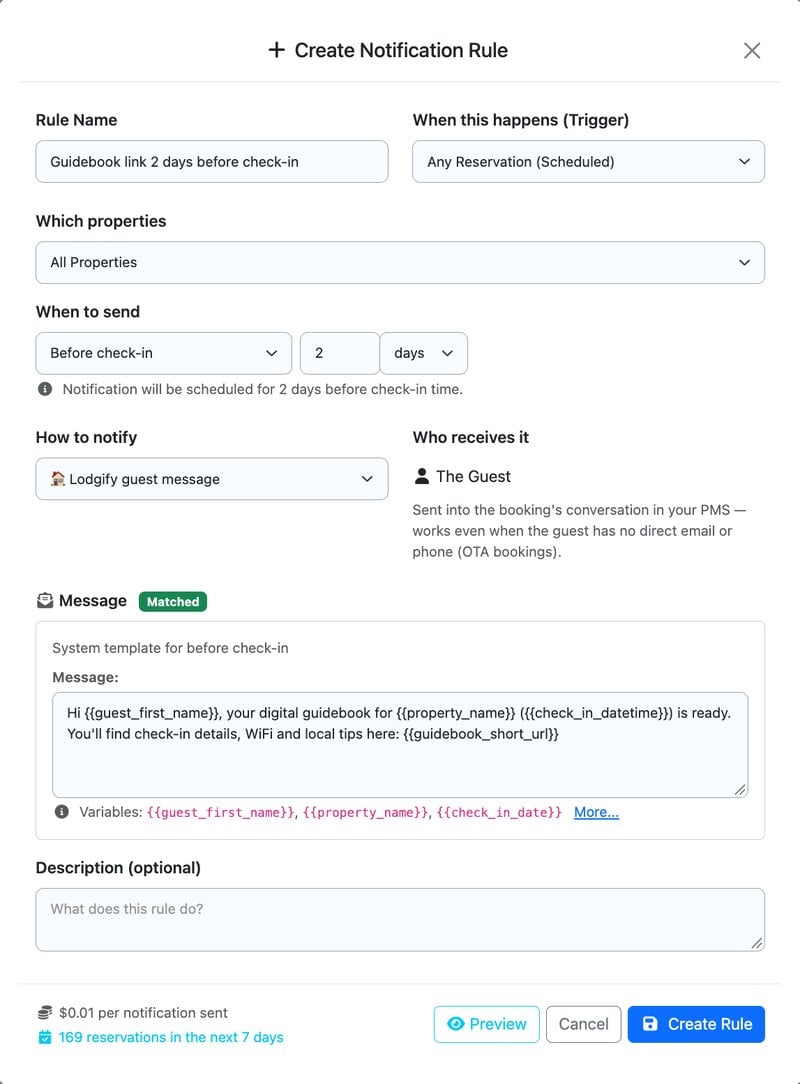
The send time is worked out from each property’s own check-in time and local time zone, so “4 hours before check-in” for a 3pm check-in goes out at 11am at the property.
Step 2: Write the message
The message box starts with a ready-made template that you can edit. Useful variables include:
{{guest_first_name}}: the guest’s first name{{property_name}}: the property name{{check_in_date}}/{{check_in_datetime}}: the check-in date, or date and time{{guidebook_url}}: the guest’s full guidebook link{{guidebook_short_url}}: a shorter version of the same link
Click More… under the message box for the full list. For example:
Hi {{guest_first_name}}, your digital guidebook for {{property_name}} ({{check_in_datetime}}) is ready. You'll find check-in details, WiFi and local tips here: {{guidebook_short_url}}Step 3: Check it’s working
The scheduler checks for upcoming bookings every 15 minutes and plans each message ahead of time. Open Automations → Activity and turn on Only scheduled (future) to see the messages waiting to go out, with their send times. Sent and failed messages appear there too; click one to see the full message, or the reason it failed.
Using this with “Message the guest directly”
On Lodgify and Channex, the Message the guest directly setting sends the link once when the booking is confirmed. Your rules then act as reminders closer to arrival, which is a common setup: link at booking, then again 4 days and 4 hours before check-in. If you only want the scheduled messages, go to Guidebooks → Property Defaults and set Guidebook Delivery to Booking note (Lodgify) or Off (Channex), and check individual properties in case one overrides the default.
Good to know
- Last-minute bookings: if a booking arrives after its send time has already passed, that message is skipped rather than sent late. A guest who books on the day won’t get a “2 days before” message. If you take a lot of same-day bookings, add a second rule with a shorter time, e.g. 4 hours before check-in. Guests who booked earlier then get a handy reminder as well.
- How far ahead: rules look up to 7 days ahead, so keep “before check-in” times to a week or less.
- Cancelled or changed bookings: a scheduled message is cancelled if the booking is cancelled, and moved if the check-in date changes.
- Cost: each message sent costs $0.01, shown at the bottom of the rule dialog.
What each PMS needs
- Lodgify: nothing extra. The message appears in the booking’s Lodgify conversation.
- Channex: the Messages app enabled on the property in Channex. Works for Airbnb, Booking.com and Expedia bookings; direct bookings have no chat thread.
- Beds24: your Beds24 invite code needs the Bookings: Write permission. Messages go through the channel (Airbnb, Booking.com, Vrbo), or by email for direct bookings.
- RentalWise: sent into the booking’s thread on its booking channel, or by email.
- SuperHote: your API key needs the Envoi de messages permission. Abritel/Vrbo and iCal bookings have no message channel.
If you don’t see a guest message option under How to notify, your PMS doesn’t support it yet. You can still send the link by SMS or email to the guest with the same kind of rule; see Send Guidebooks via TXT / SMS Before Check-In.