Some upsells need a little information once the guest has paid. If they buy firewood, they need to know where it is and the code for the combination lock on the box. If they buy parking, they need the bay number and the gate code. The After purchase message on each product lets you write those instructions once. BetterSTR sends them to the guest automatically, but only after they’ve paid.
Never put codes in the product’s Description. The description is shown in your guidebook and the TV shop to everyone, before they buy. The After purchase message is private and only goes to the guest who paid.
Where the guest sees it
Once the payment goes through, your message appears:
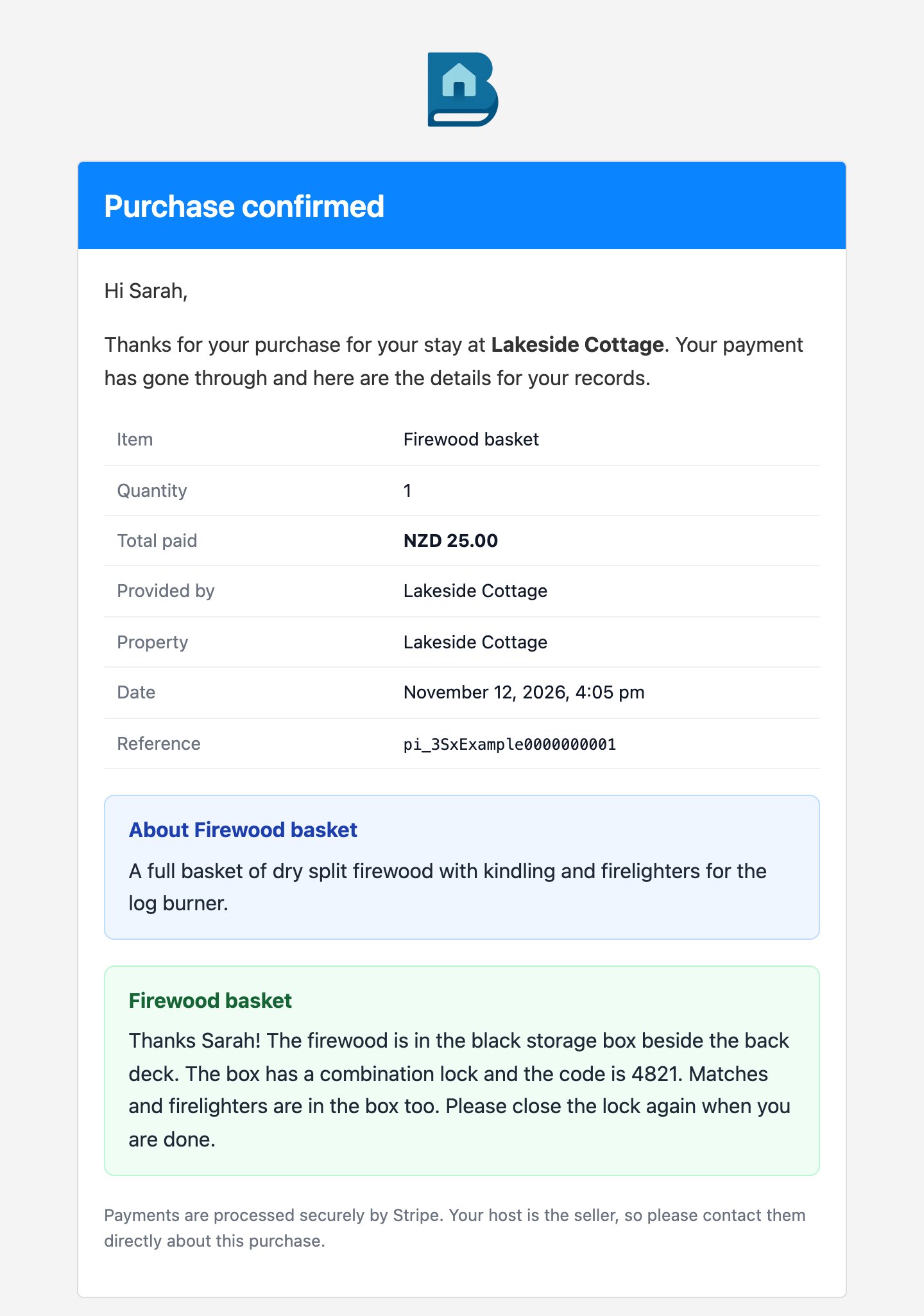
- In the guest’s confirmation email, in its own box headed with the product name. It replaces the general “What happens next” note.
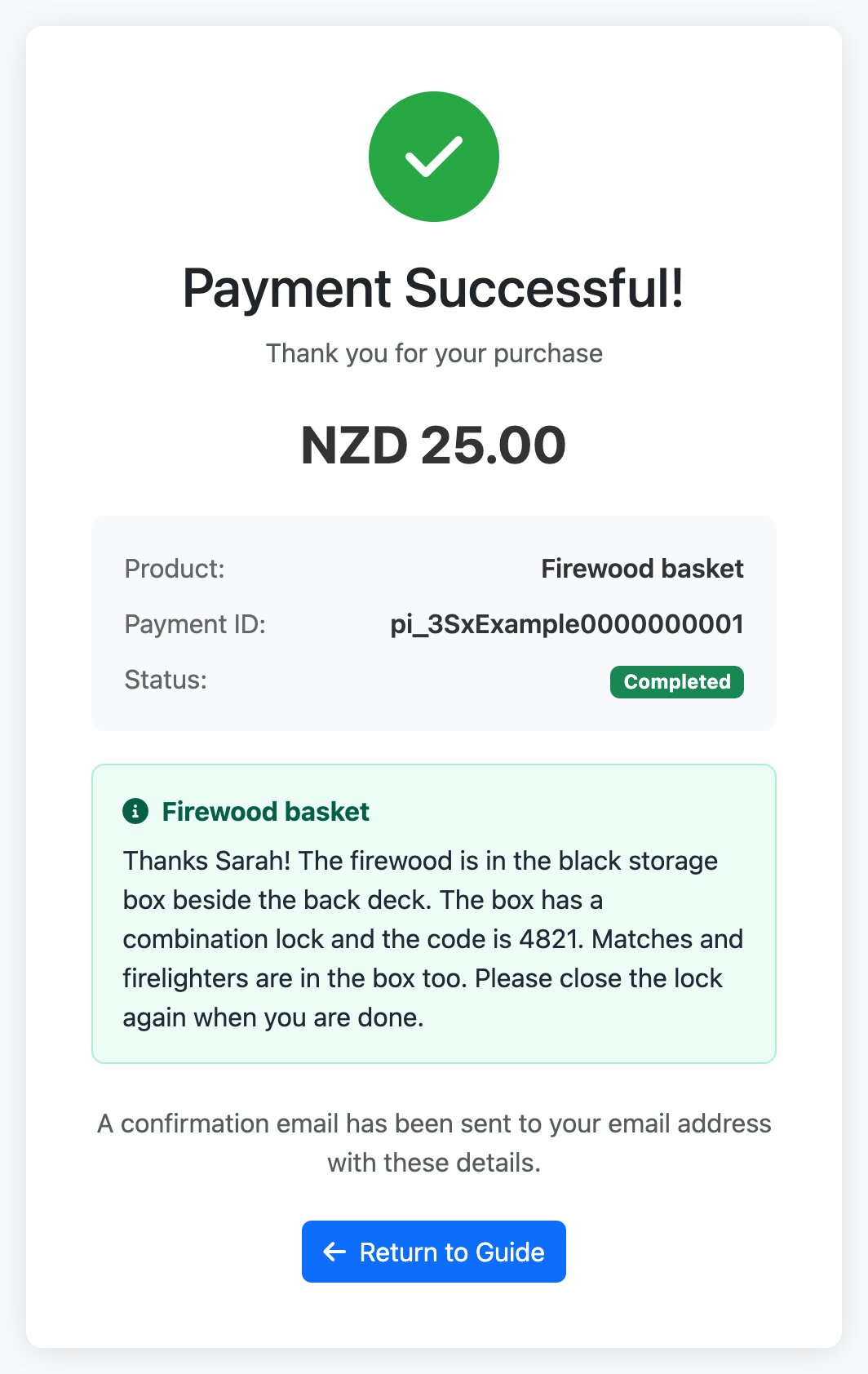
- On the payment screen the guest sees straight after paying in your guidebook.
- On the TV, in the “Payment complete” message, when the guest buys from the shop on a BetterSTR TV.
If the guest buys several products at once, they get one box for each product that has a message. Products that need your approval work the same way: the message is sent once you’ve approved the request and the guest has paid.
Add a message to a product
- Go to Upsells / Revenue → Products and click Edit on the product, or Add product for a new one.
- Find After purchase. On Edit product it has its own section near the bottom of the page. On Add product it’s in the Availability card as After purchase message.
- Type the instructions the guest needs, then save.
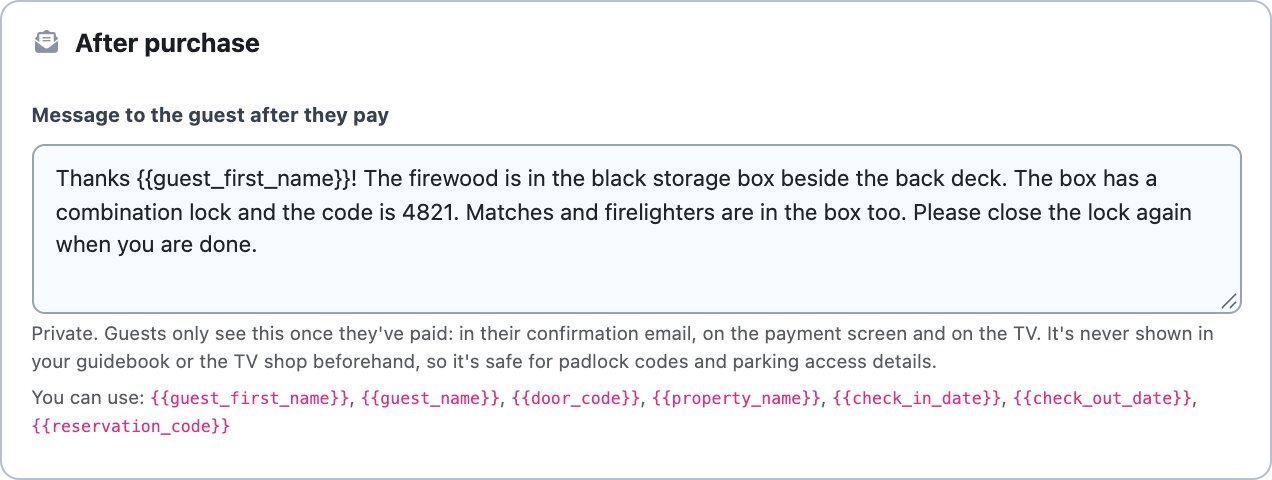
You can also add it straight from your guidebook. Open your property’s guide while you’re logged in, go to the Shop, and edit a product (or add a new one). The After purchase message box is under the approval and tax switches:
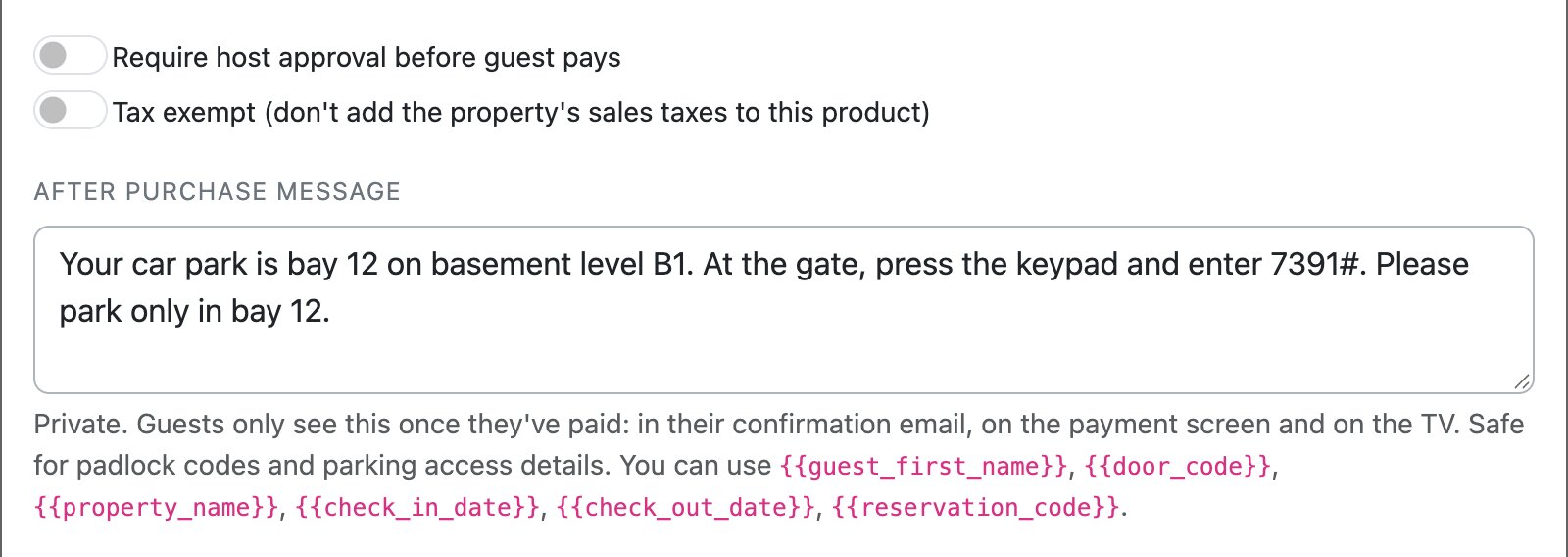
To remove a message, clear the box and save.
Example messages
Firewood in a box with a combination lock:
Thanks {{guest_first_name}}! The firewood is in the black storage box beside the back deck. The box has a combination lock and the code is 4821. Matches and firelighters are in the box too. Please close the lock again when you are done.
Parking:
Your car park is bay 12 on basement level B1. At the gate, press the keypad and enter 7391#. Please park only in bay 12.
Other good uses: where to find the bikes or kayaks and the lock code, how to turn on the spa pool, when the breakfast box will be dropped off, or the code for the EV charger.
What the guest receives
Here’s the firewood message in the guest’s confirmation email:
And on the payment screen straight after they pay in the guidebook:
Personalise it with booking details
You can add these to the message and they’re filled in from the guest’s booking:
{{guest_first_name}}and{{guest_name}}{{door_code}}(if there’s no door code on the booking, the last 4 digits of the guest’s phone number are used){{property_name}}{{check_in_date}}and{{check_out_date}}{{reservation_code}}
When booking details are blank
Booking details can only be filled in when the guest buys from their own reservation guide link or from the TV in the property. If they buy from your general property guide, we don’t know which booking they’re on, so those placeholders are left blank. Write the message so it still makes sense if a detail is missing, and don’t rely on {{door_code}} for anything essential.
Messages are plain text (no formatting or links) and can be up to 2,000 characters. Line breaks are kept.