Connect your Hostify account to BetterSTR with one API key. Every Hostify listing becomes a BetterSTR property, your photos, WiFi and house rules come across, every guest gets a personal digital guidebook, and each guest’s guide link is saved on their Hostify reservation so your own Hostify messages can send it. The Hostify connection is new and marked beta: if anything looks wrong, email support@betterstr.com and we’ll look at your account with you.
Before you start
- You need a BetterSTR account. Create one free if you don’t have one yet.
- Only a Hostify account administrator can create API keys. If you can’t see the Developer Portal in Hostify, ask whoever owns your Hostify account.
- BetterSTR can only be connected to one PMS at a time. If you’re on another integration, disconnect it first.
Step 1: Create an API key in Hostify
- Sign in to Hostify as the account administrator and open Developer Portal → API Keys.
- Create a key and tick these seven scopes:
- Listings read
- Reservations read (incl. guest data), not the plain Reservations read, which leaves out guest names
- Guests read
- Webhooks read and Webhooks write, so changes reach BetterSTR within a minute
- Custom fields read and Custom fields write, so BetterSTR can save each guest’s guide link on their reservation
- Click Save scopes and copy the key.
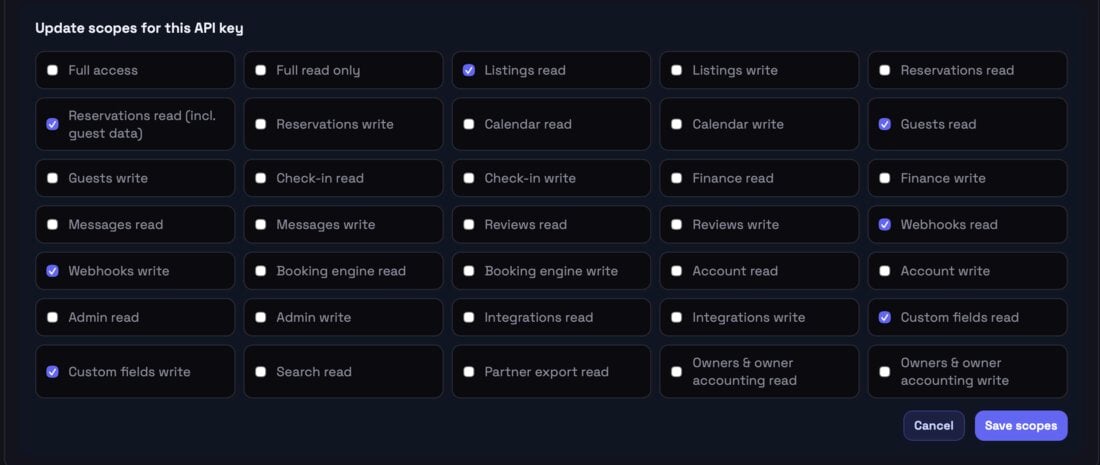
Want BetterSTR to message guests through Hostify as well? Also tick Messages read and Messages write. Everything else can stay unticked: BetterSTR never needs to change your listings, calendar, prices or bookings.
Step 2: Paste the key into BetterSTR
- In BetterSTR, go to Integrations → Hostify.
- Paste the key into API key and click Connect Hostify.
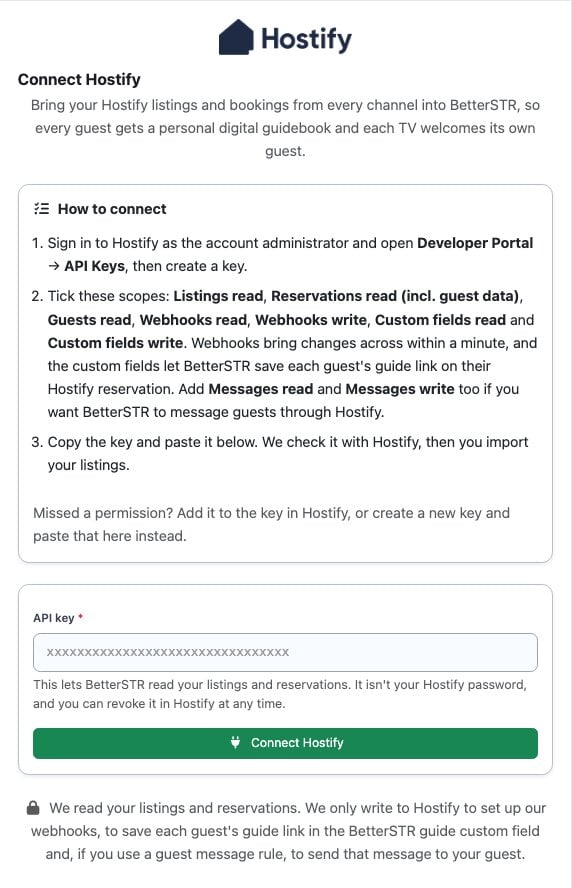
BetterSTR checks the key with Hostify before saving anything, and tells you if a required scope is missing. It then sets up the webhooks in Hostify for you.
Step 3: Sync your listings
- Click Sync Properties. Each active Hostify listing becomes its own BetterSTR property, switched on.
- Your current and upcoming reservations import in the background, from 30 days ago onwards. Full Sync pulls in three years of history.
- Switch off any listing that doesn’t need a guide or TV. Only switched-on properties send guides, show on the Reservations page and appear on TVs.
Hostify keeps a copy of each listing for every channel. BetterSTR puts every Airbnb, Booking.com, Vrbo, Expedia and direct booking on the one property it belongs to.
Step 4: Send guests their guide from Hostify
BetterSTR creates a reservation custom field in Hostify called BetterSTR guide and saves each guest’s personal guide link in it. Add that custom field to your Hostify message templates (for example your check-in instructions message), and every guest gets their own guide in the message you already send.
Why this matters for Airbnb
Airbnb doesn’t share guests’ email addresses and rarely their phone numbers, so BetterSTR’s own email and SMS rules can’t reach most Airbnb guests.
The BetterSTR guide custom field in your Hostify messages reaches every guest. Booking.com guests also get a relay email address, so your BetterSTR email rules work for them too.
You can switch the custom field off and on with the guide link switch on the Hostify page in BetterSTR. Reset %guidebook% in the left menu writes the links again for the properties you choose.
What syncs
- Listings: name, address, map location, guests, bedrooms, bathrooms, beds, timezone and currency.
- Photos and amenities, in your Hostify order.
- House rules and check-in instructions (or the guest access text when there are none).
- WiFi name and password from the listing’s details, for the WiFi QR code. If they’re blank in Hostify, enter them once in BetterSTR.
- Check-in and check-out times: the guest’s planned arrival and departure when Hostify has them, otherwise the listing’s times.
- Reservations: dates, status, channel, adults and children, price, the guest’s name, and their email and phone when the channel shares them. Pending bookings come through as pending; cancellations, no-shows and expired requests as cancelled. Enquiries that never became a booking aren’t imported.
- Door code: the reservation’s lock PIN when Hostify holds one.
How syncing works
- Webhooks: Hostify tells BetterSTR about new, changed and moved bookings, usually within a minute.
- Hourly check: BetterSTR reads anything changed since the last check, in case a webhook was missed. Without the webhook scopes this runs every 10 minutes instead.
- Every 6 hours: a wider check of stays from two days ago to two months ahead.
- Daily: your listings are re-read, so new listings, photos and name changes come across. A listing you remove in Hostify is removed from BetterSTR too.
- Sync buttons on the Hostify page re-read on demand: Sync Properties, Sync Reservations and Full Sync.
Disconnecting
On the Hostify page in BetterSTR, choose Disconnect in the left menu. BetterSTR removes its webhooks in Hostify, deletes your API key, and removes the synced Hostify properties and reservations from your account. You can also deactivate the key in Hostify at any time; BetterSTR then shows Hostify as needing to reconnect.
Troubleshooting
“That Hostify API key reads reservations without guest names.” The key has Reservations read instead of Reservations read (incl. guest data). Change the scope in Hostify, then paste the key again.
Changes take an hour to arrive. The key is missing Webhooks read or Webhooks write. Tick both in Hostify, then on the Hostify page in BetterSTR click Connection and Save (you can leave the key box blank) so BetterSTR sets up the webhooks.
The BetterSTR guide custom field is empty. Check the key has Custom fields read and Custom fields write, that the guide link switch on the Hostify page is on, and that the property is switched on. Links are written for upcoming bookings; use Reset %guidebook% to write them again.
A reservation is missing. Check its property is switched on, then click Sync Reservations on the Hostify page.
“Hostify says this account is not active.” Hostify switches off API access while an account is suspended or inactive. It comes back on its own once the Hostify account is active again.