Sometimes an access point just needs a restart, and sometimes you’re done with it: it’s moving to another property, being replaced, or was added by mistake. You can do both from your BetterSTR dashboard, without touching the device or logging in to anything else.
Restart (reboot) an access point
- Go to Devices → Wifi Devices → Omada in your dashboard.
- In the Access Points list, find the access point and click the Reboot button (the circular arrows) in the Actions column.

- Confirm when asked.
- The access point restarts and is offline for about 1–2 minutes, then comes back on its own. Your WiFi networks, settings and property assignment stay exactly as they were.
Guests connected to that access point drop off while it restarts and reconnect automatically once it’s back. If you have more than one access point, the others keep working the whole time.
The Reboot button only shows on access points that are Adopted (online). An access point that’s Disconnected or Preconfigured can’t be reached from the dashboard, so there’s nothing to send the restart to. See Why does my Omada access point show Disconnected or Preconfigured? for getting it back online.
Remove an access point
How you remove an access point depends on its status in the list.
Adopted or Disconnected: Remove & factory reset
- Click the Settings button (the cog) on the access point’s row.
- At the bottom of the Access Point Settings window, click Remove & factory reset this device.
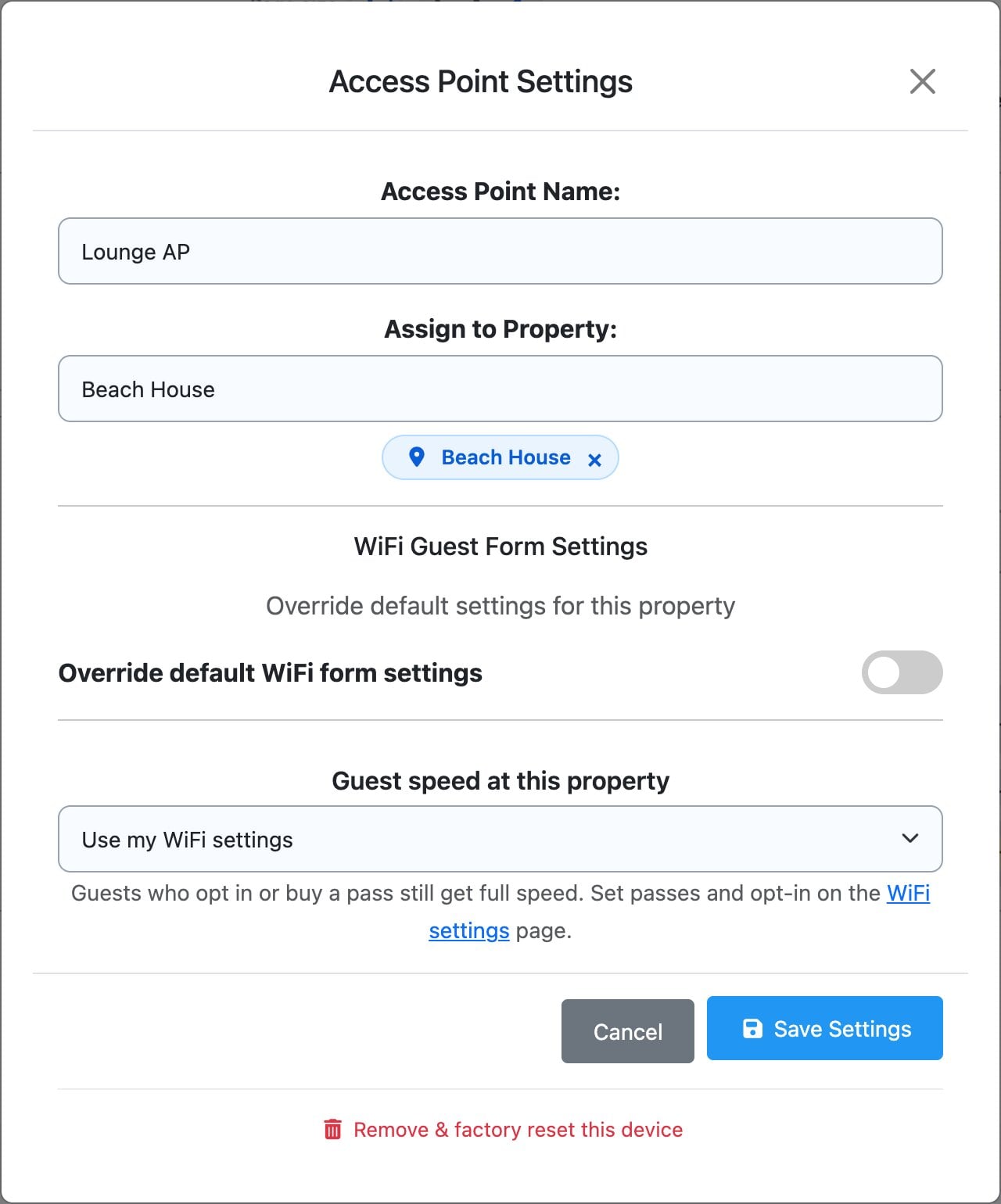
- Read the warning and confirm.
This does two things: it removes the access point from your WiFi controller, and it wipes the device back to factory settings. It goes offline, restarts with default settings after 1–2 minutes, and disappears from your Access Points list. Its property assignment is cleared too.
If the access point is Disconnected when you remove it, it’s taken off your controller, but it can’t be wiped from a distance. Before you use it anywhere else, factory reset it by hand: with it powered on, hold its reset button for 10 seconds or more until the lights flash.
This can’t be undone
Once removed, the access point stops broadcasting your WiFi, so guests at that property lose their connection. To use it again, you need to adopt it again with its Device Key, the same way you set it up the first time: see Connecting Omada WiFi to Your Property.
Just want it working again? Try a Reboot first. Moving it to another property? You don’t need to remove it: open Settings and change Assign to Property instead.
Preconfigured: the delete button
An access point showing Preconfigured has been added but has never come online, so it has no Settings button. Instead there’s a red delete button (the bin) in the Actions column.

Click it and confirm. This only removes the waiting entry from your WiFi controller. Nothing changes on the device itself, because it never connected. Use this if you typed the wrong Device Key or MAC, added the wrong device, or want to start the setup again: delete it, then adopt it again.
If you’d rather get it working than delete it, the fixes are in Why does my Omada access point show Disconnected or Preconfigured?
Does removing an access point stop its fee?
Yes. Access points are billed $2 a month each, in advance, on your monthly billing date (unless your BetterSTR Simple plan covers them). Once an access point is removed it’s left off your next monthly bill. The month you’ve already paid for isn’t part-refunded, and if you remove an access point and add the same one back before your next billing date, it isn’t charged twice for that month.