Your Omada WiFi has two networks: an open guest network that guests sign in to through your WiFi page, and a private network with a password, for you and your own devices. You can rename either one, change the private network’s password and choose which frequency band each one uses, all from your dashboard.
Open the Edit dialog
- Go to Devices → Wifi Devices → Omada in your dashboard.
- Find the WiFi Networks card. The guest network has an orange bar and Guest network next to its name; the private network has a blue bar and Private network.
- Click Edit on the network you want to change.

Change the private network name or password
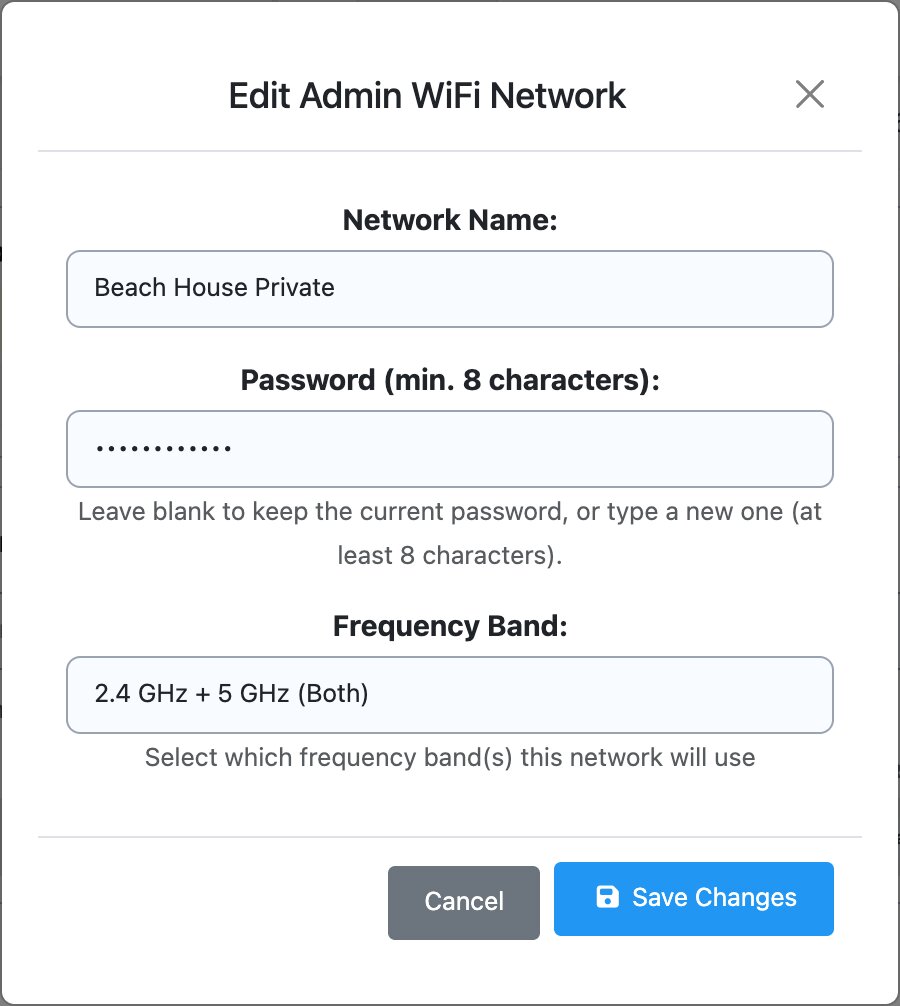
- Click Edit on your private network. The dialog is called Edit Admin WiFi Network.
- Type the new name in Network Name, or leave it as it is.
- To change the password, type the new one in Password. It must be at least 8 characters. Leave the box empty to keep your current password, for example when you only want to change the name or band.
- Click Save Changes. You’ll see WiFi settings updated successfully! at the top of the page.
Rename the guest network
Click Edit on your guest network, type the new name in Network Name and click Save Changes. Pick something guests will recognise, like your property’s name.
The guest network doesn’t have a password, and there’s no password box in its Edit dialog. It’s meant to be open: guests join it, then sign in through your WiFi page, which is how you collect their details and keep control of who’s online.
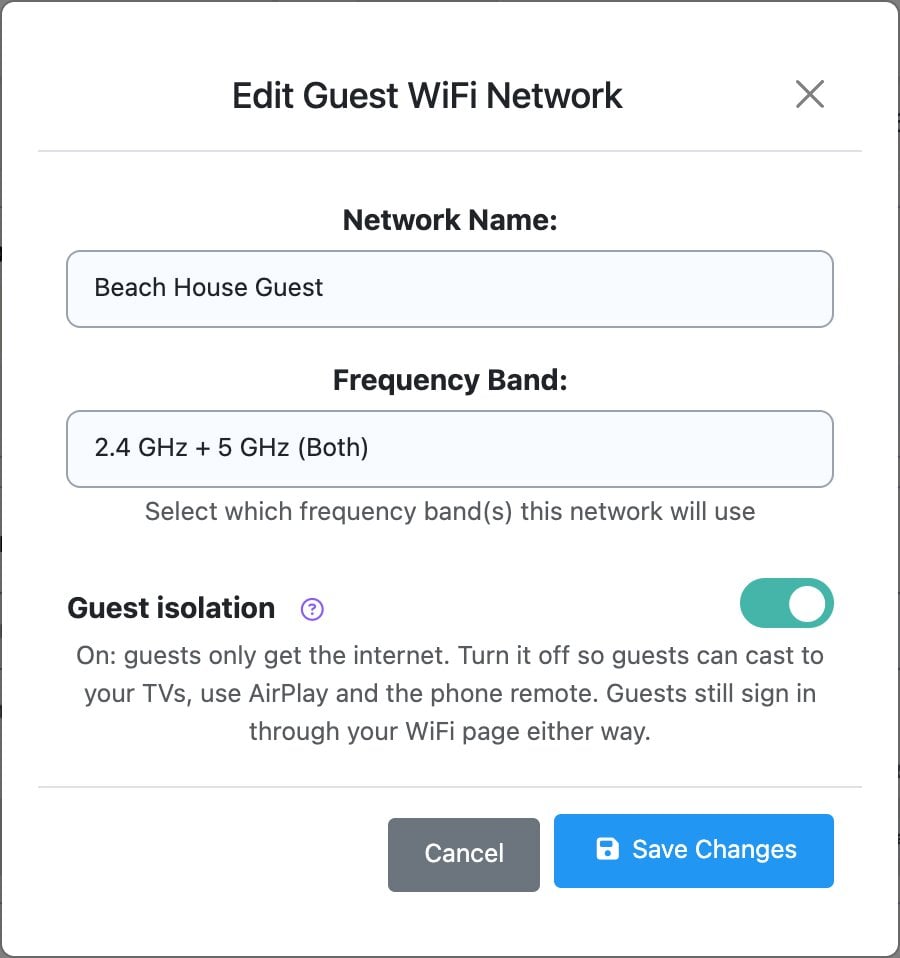
The guest dialog also has a Guest isolation switch, which decides whether guests can reach your TVs for casting. See How do I let guests reach my TVs (casting, AirPlay, phone remote) on Omada guest WiFi?
Choose a frequency band
Frequency Band sets which kind of WiFi signal the network uses:
- 2.4 GHz + 5 GHz (Both): the best choice for almost everyone. Each phone, laptop or TV picks whichever works best where it is.
- 2.4 GHz Only: reaches further and gets through walls better, but is slower. Pick it if an older device or a smart home gadget (some plugs, cameras and sensors) can only see 2.4 GHz and won’t connect otherwise.
- 5 GHz Only: faster, but with a shorter range. Only pick it if every device that uses this network supports 5 GHz and sits fairly close to an access point.
If you’re not sure, leave it on Both.
What guests and devices notice
Your access points pick up the change from the Omada controller, usually within a minute or so. While they do, devices on that network drop off for a moment.
- After a rename, phones and TVs still remember the old name, so they won’t reconnect on their own. They need to choose the new name from their WiFi list. Guests then sign in through your WiFi page if they’re asked to.
- After a password change on the private network, every device that uses it needs the new password.
- Always-allowed devices like your TVs stay always allowed, but if you renamed the guest network you need to join each one to the new name.
Renaming between bookings
Rename the guest network between stays rather than during one, and update the WiFi name wherever you share it with guests (your guidebook, house manual or welcome message) so it matches what they’ll see on their phone.