Every access point in your Access Points list has a coloured status on the left. Green Adopted means it’s online and working. If you see a red Disconnected or a purple Preconfigured, the access point isn’t talking to BetterSTR, and this article walks you through getting it back.
You’ll find the list under Devices → Wifi Devices → Omada in your dashboard.
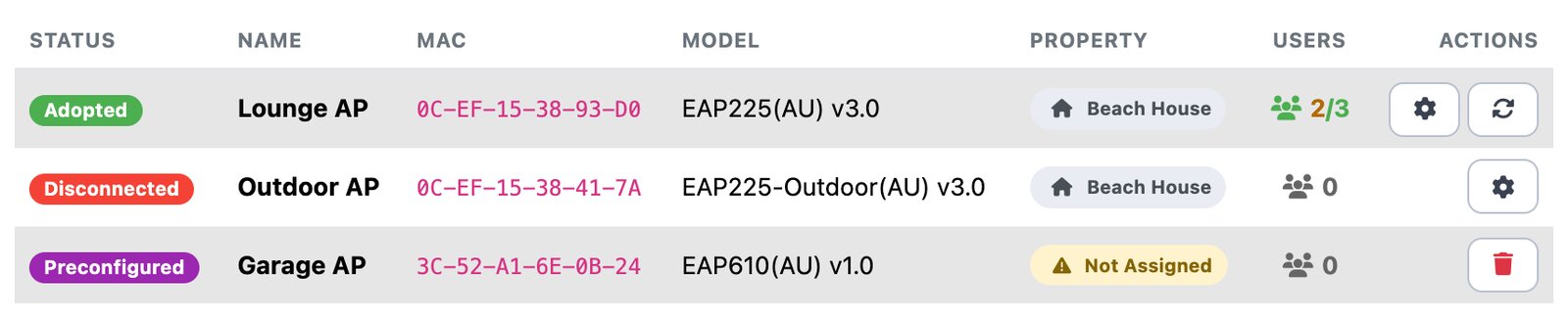
What each status means
- Adopted (green): online and connected. Nothing to do.
- Disconnected (red): this access point has been online before, but it isn’t right now. Usually it’s lost power or its internet connection.
- Preconfigured (purple): it’s been added to your account but has never checked in. Most often it simply hasn’t reached the internet yet, so it can’t download its setup and connect to us: it isn’t powered, isn’t plugged into your router, or the router has no internet. Less often it’s online but still holding settings from the Omada app or another controller, which stops it joining ours.
Disconnected: get it back online
Hover over the red Disconnected label to see how long it’s been offline. That’s a good clue: if it went offline at the same time as a power cut or an internet outage at the property, that’s probably your answer.

Then work through these in order, checking the list after each one:
- Check it has power. Omada access points are powered through the Ethernet cable (PoE), from a PoE switch or the PoE injector that came with it. Look for a light on the access point. No light usually means the injector is unplugged at the wall, or the cable has come out of the PoE port on the injector or switch.
- Check the internet. The same cable has to reach your router (directly, or through the PoE injector or switch), and that router needs a working internet connection. If other devices at the property can’t get online either, the problem is the internet, not the access point.
- Restart it. Unplug the PoE injector (or the cable to the access point) for 10 seconds and plug it back in.
- Wait 1–2 minutes for it to start up and reconnect, then click the refresh button above the list. The status should change back to Adopted on its own; you don’t need to adopt it again.
There’s no Reboot button on a Disconnected access point, because the dashboard has no way to reach it. It comes back once the access point is online again.
Still Disconnected after all that? Try a different cable or a different port on the switch or router, in case one has failed. If that doesn’t help, get in touch with us and include the access point’s name and MAC address from the list.
Preconfigured: finish the setup
Click the purple Preconfigured label for the full steps on screen.
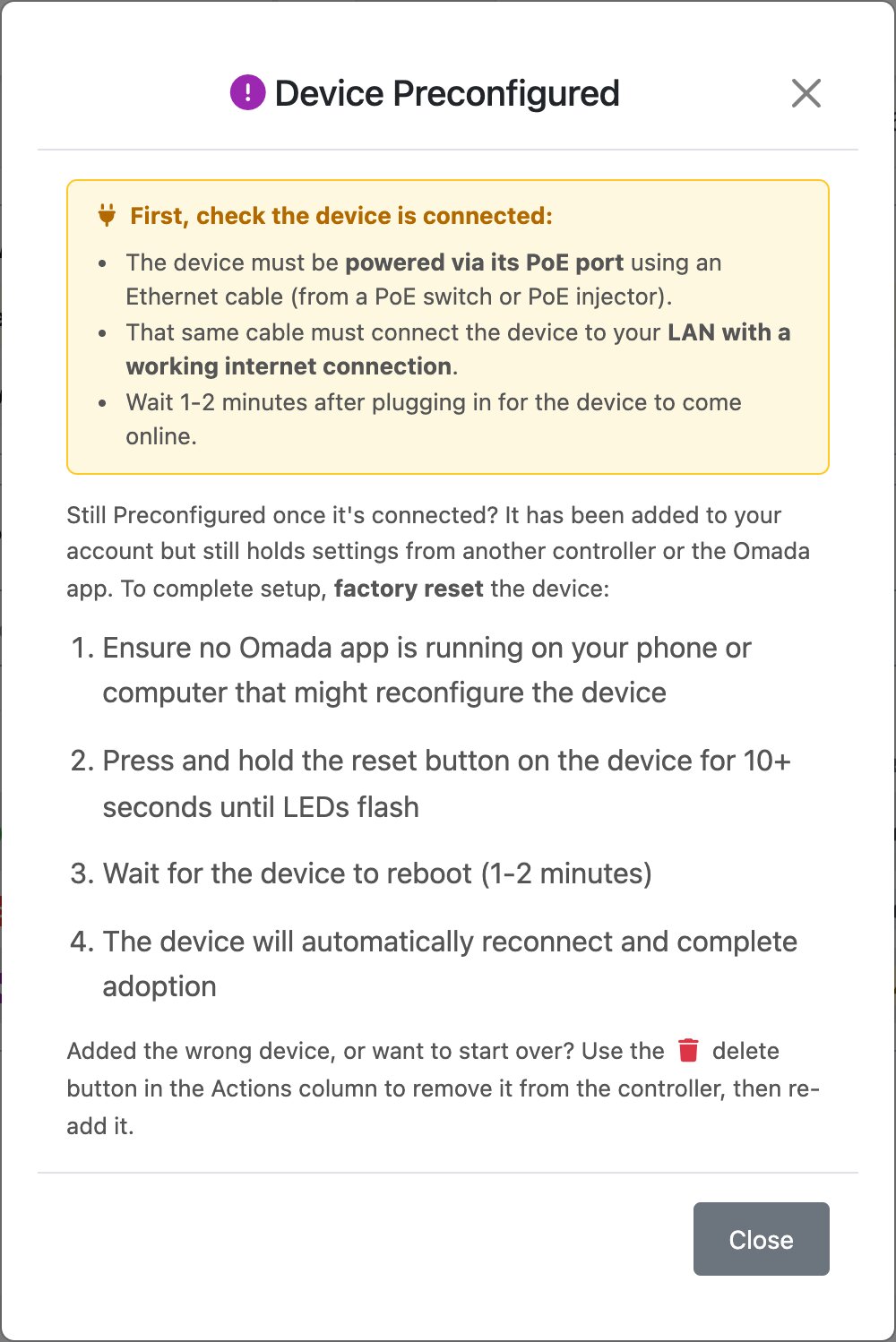
- Power it over PoE. Plug the access point into the PoE port of a PoE switch or injector with an Ethernet cable.
- Connect it to the internet. That same cable needs to reach your router with a working internet connection.
- Wait 1–2 minutes after plugging it in, then click refresh above the list. If it now shows Adopted, you’re done.
- Still Preconfigured? Factory reset it. Close any TP-Link Omada app on your phone or computer first, so it can’t set the device up again. Then, with the access point powered on, press and hold its reset button for 10 seconds or more, until the lights flash.
- Wait 1–2 minutes while it restarts. It reconnects and finishes adopting by itself, and the status turns green.
Don’t install the Omada app
This is the number one reason an access point gets stuck on Preconfigured. The TP-Link Omada app (and the setup steps in the box) quietly configure the access point for the app, even if you only open it and look around. Once that happens, it won’t join BetterSTR until it’s factory reset.
Everything you need is in your BetterSTR dashboard. If you’ve already installed the app, close or uninstall it, then do the factory reset in step 4.
Added the wrong device?
If the reset doesn’t help, check the Device Key or MAC address you entered matches the label on the back of the access point. If it doesn’t, or you want to start again, click the red delete button (the bin) on that row to remove the waiting entry, then adopt it again as described in Connecting Omada WiFi to Your Property. Deleting a Preconfigured entry doesn’t change anything on the device itself. More on that in How do I restart or remove an Omada access point?