Some devices can’t use a WiFi sign-in page: smart TVs, streaming sticks, games consoles, smart speakers and other smart home gear. On BetterSTR’s Omada guest WiFi you can put these on an always-allowed list. They get internet straight away, without the sign-in page, and never get signed out. Your guests still sign in as usual.
There are two ways to add a device. Both put it on the same list.
Option 1: from the connected users on an access point
Use this when the device is already connected to your guest WiFi (it’s sitting on the sign-in page with no internet).
- Go to Devices → Wifi Devices → Omada in your dashboard.
- In the Access Points list, click the people icon in the Users column of the access point the device is connected to. The numbers show guests / everyone connected.

- Find the device in Connected Users. TVs and streaming sticks usually show their own name; otherwise match it by its MAC address (shown under the name, and on the device’s network settings screen).
- Click Always allow under its buttons, give it a name if you like (for example “Lounge TV”) and click OK.
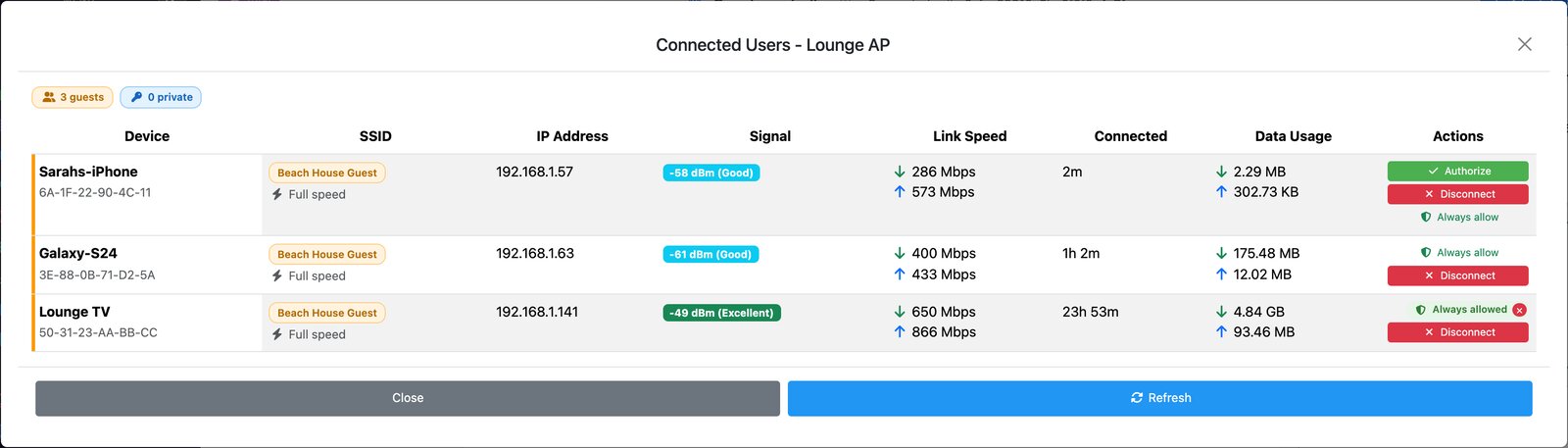
The device now shows a green Always allowed badge. If it still has no internet after a minute, turn its WiFi off and on again (or restart it) so it reconnects.
Option 2: on the Network access page
Use this to add a device by its MAC address, for example before it’s even plugged in, or to see and tidy up the whole list.
- Go to Devices → Wifi Devices and click Network access in the Sections menu.
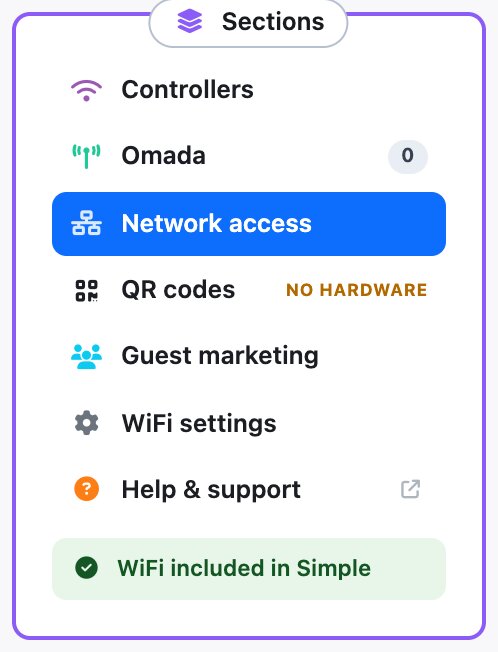
- Under Always-allowed devices, type the device’s MAC address (for example
50-31-23-17-29-F8; colons work too), an optional name, and click Add.
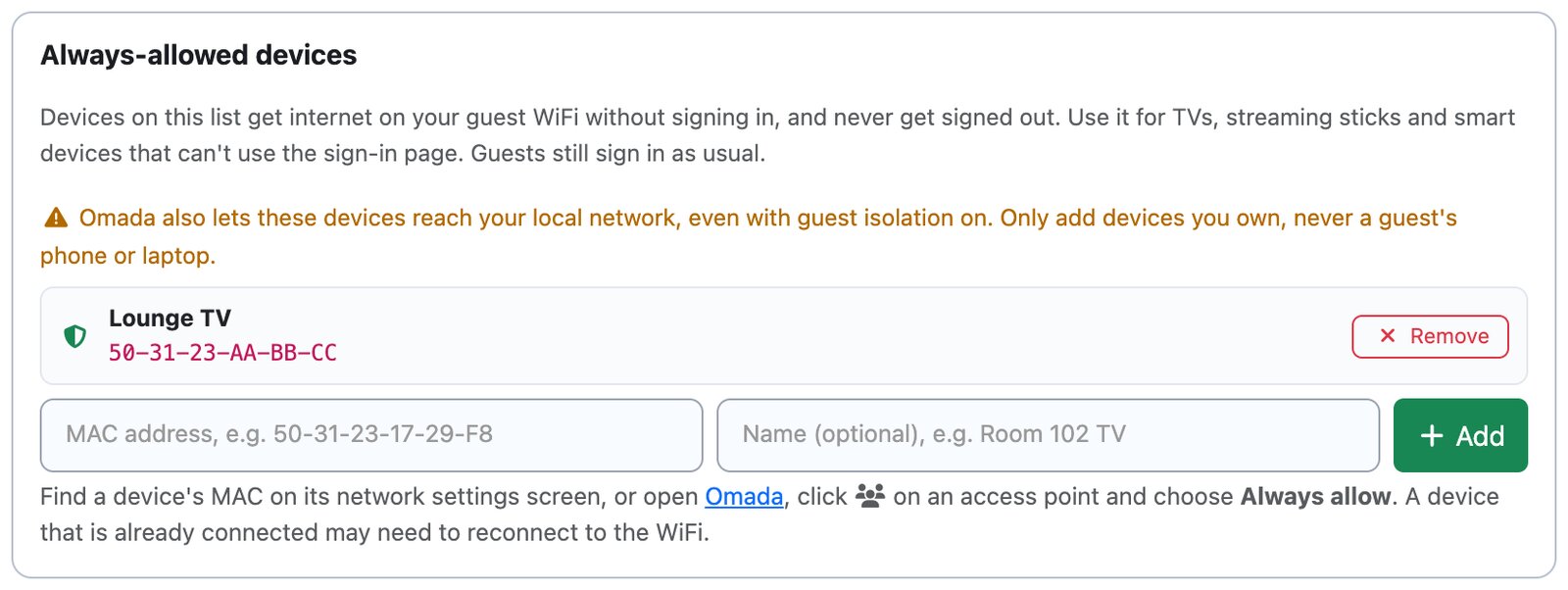
When BetterSTR spots one of your BetterSTR TVs on the guest WiFi that would be asked to sign in, it suggests it at the top of this card with an Always allow button, so you don’t need to look up its MAC.
Only add your own devices
Omada lets always-allowed devices reach your local network even when guest isolation is on. That’s fine for your own TV, but an always-allowed phone or laptop could reach your router admin page, your TVs and anything else on your network.
So never always-allow a guest’s device. If a guest is stuck on the sign-in page, authorise them manually instead: they get internet but stay isolated.
Finding a device’s MAC address
- Android TV / Google TV: Settings → Network & Internet → your WiFi network (or Settings → System → About → Status).
- Phones and tablets: many use a different “private” MAC address for each WiFi network. Use the address shown in that network’s own settings, or simply connect it and use Option 1.
- Anything else: connect it to the guest WiFi and find it under the access point’s connected users (Option 1).
Removing a device
Click Remove next to it on the Network access page, or the small red × on its Always allowed badge in Connected Users, and confirm. The device will have to sign in through your WiFi page like a guest from then on.