Out of the box, UniFi keeps guests on your guest WiFi away from your local network: they get the internet and nothing else. That’s the safe default, but it also blocks anything where a guest’s phone talks straight to the TV:
- Casting from YouTube, Netflix and other apps (Chromecast / Google Cast)
- AirPlay and screen mirroring from iPhones, iPads and Macs
- The BetterSTR TV phone remote
- Plex, DLNA and other apps that look for devices on the network
BetterSTR can open just your TVs to guests, on our hosted UniFi and on your own UniFi controller. Guests still sign in through your WiFi page exactly as before.
Step 1: list the TVs guests can reach
- Go to Devices → Wifi Devices and click UniFi network access in the Sections menu. If you have more than one UniFi controller, pick it from the Controller list at the top.
- Under Guest access to your devices, choose Only these devices (recommended).
- Add each TV by its IP address, with a name if you like. The buttons under Your TVs fill in your BetterSTR TVs for you. You can also enter a range such as
192.168.1.0/24. - Click Save.
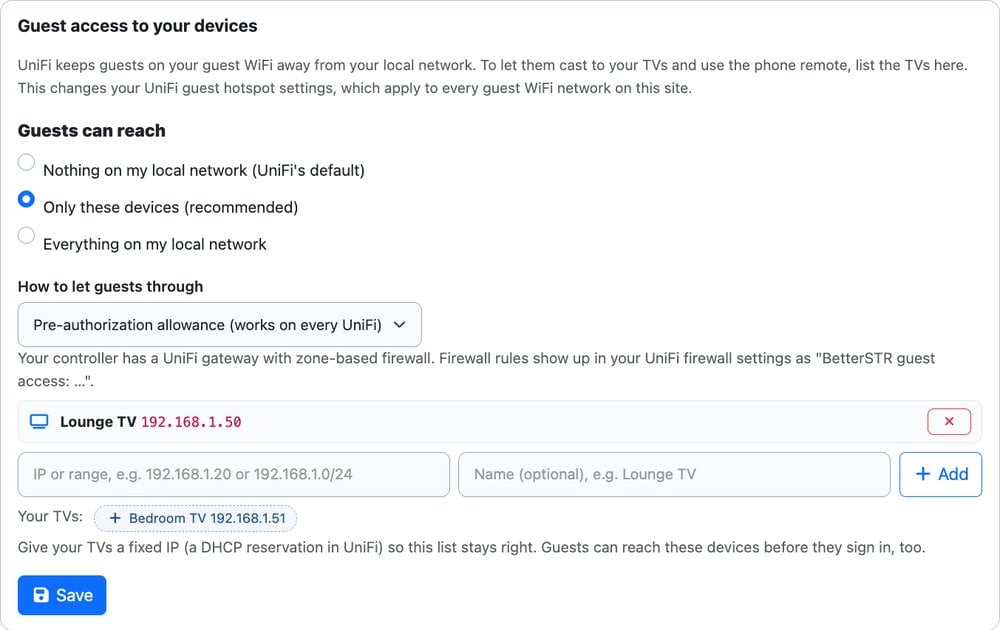
This changes your UniFi guest hotspot settings, which apply to every guest WiFi network on that controller’s site.
Pre-authorization allowance or firewall rule?
If your UniFi has a UniFi gateway (a Cloud Gateway, Dream Machine or similar) with the zone-based firewall, a How to let guests through choice appears:
- Pre-authorization allowance (the default, works on every UniFi): your TVs are added to the hotspot’s Pre-Authorization Allowances.
- Firewall rule per device: BetterSTR adds an allow rule for each TV to your UniFi firewall, named “BetterSTR guest access: …”. Use this if your TVs are on a network in a firewall zone of their own.
Either way, BetterSTR only ever changes the entries it added itself. Anything you set up in UniFi stays as it is.
Step 2: turn off client device isolation (TVs on the guest network)
If your TVs are on the same WiFi network as your guests, also make sure client device isolation is off on that network, so devices on it can reach each other:
- Go to Devices → Wifi Devices and open UniFi, or Your own UniFi and then your controller.
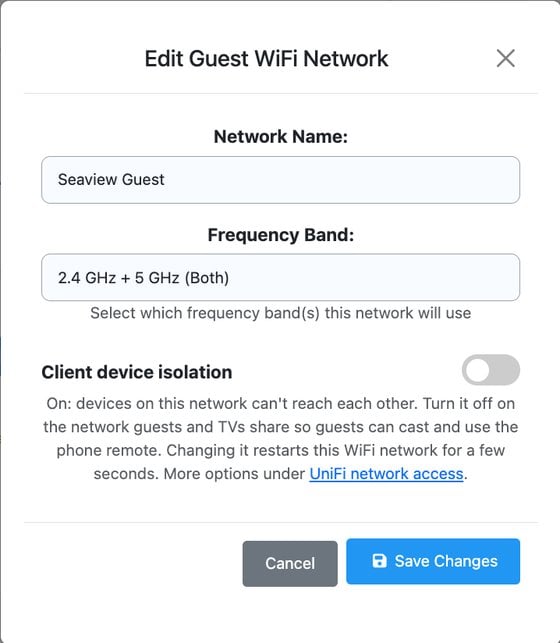
- Under WiFi Networks, click Edit on the network your guests and TVs share.
- Switch Client device isolation off and click Save Changes. That WiFi network restarts for a few seconds.
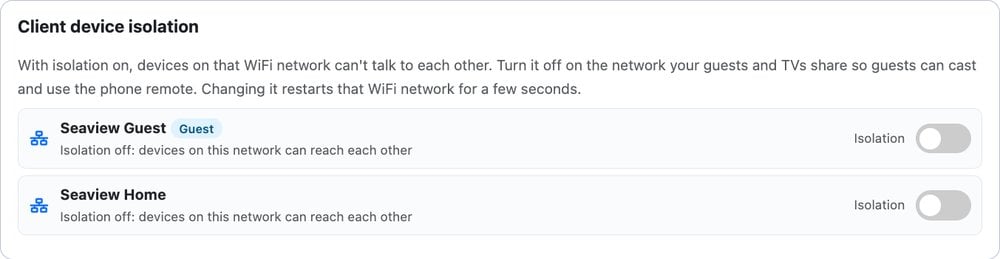
You can also see and switch isolation for all your WiFi networks in one place, under Client device isolation on the UniFi network access page.
If your TVs are on your private WiFi network and only your guests are on the guest network, Step 1 is all you need. For casting and AirPlay to find TVs on another network, also turn on Multicast DNS (mDNS) for both networks in your UniFi network settings. The phone remote works either way, because the guest scans the code on the TV.
Give your TVs a fixed IP address
The list works by IP address, so if a TV gets a different address next week, guests lose access to it. In UniFi, open the TV under Client Devices and set a Fixed IP Address (a DHCP reservation) so it always gets the same one.
Everything on my local network
The third choice, Everything on my local network, lets guests reach every device on your local network, including your router’s admin page, cameras, computers and NAS drives. Only use it if there’s nothing private on your network. Only these devices is the safer choice for almost every rental.
Good to know
- Guests still sign in. None of this changes your WiFi page, speed tiers or guest marketing. It only changes what a guest can reach once they’re online.
- Listed TVs are reachable before sign-in too. A guest who hasn’t signed in yet still can’t get to the internet, but they can see the TVs on your list.
- Guests can see each other’s TVs. AirPlay and Cast lists show every TV a guest can reach. In a building with several units on one WiFi, use the Scan QR to enable casting setting so a TV only appears to the phone that scanned its code.
- Always-allowed devices aren’t affected. Devices you let skip the sign-in page get the internet only, like any signed-in guest.
- To undo it, choose Nothing on my local network and click Save. BetterSTR removes everything it added.