Give guests on your WiFi a standard speed (2 or 5 Mbps), and full speed when they opt in to your updates or buy a fast-WiFi pass. Passes are paid straight into your own Stripe account. It is off until you turn it on, so nothing changes for your guests until you choose a speed.
Before you start
- This works with Omada and UniFi access points, on our controllers or your own UniFi controller connected to BetterSTR.
- To sell passes you need Stripe connected, the same as for upsells. If it isn’t, the setting shows a Connect Stripe link.
- It doesn’t apply to the WiFi QR code (no hardware) option, because there is no access point to set a speed on.
How it works for your guests
- The guest joins your WiFi and fills in the sign-in form as usual.
- If you turn on Full speed for guests who opt in, the marketing toggle is unticked and optional, with a line under it explaining that ticking it gives full-speed WiFi. Guests who tick it get full speed straight away.
- Everyone else is online at your standard speed, which is fine for messages, email and browsing.
- If you sell passes, the guest can upgrade any time from the link in their confirmation email or from your guidebook. They pay by card, and their device goes to full speed within seconds, with no need to sign in again. On Omada the change is instant; on UniFi the device drops off for a few seconds and rejoins by itself.
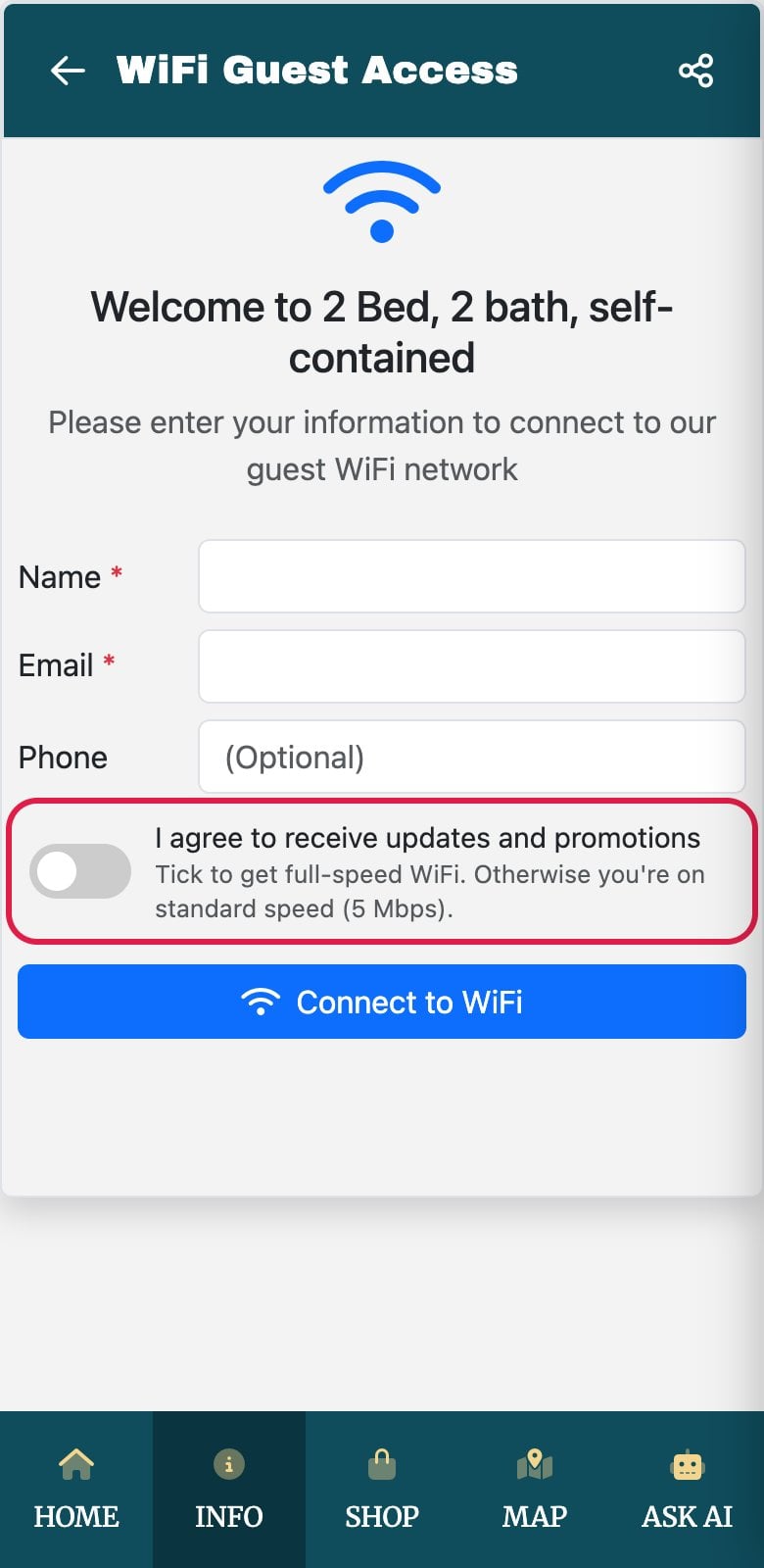
The guest sign-in form on a phone. The highlighted toggle is optional; ticking it unlocks full speed.
Turn it on
Go to Wifi Devices → WiFi settings and scroll to Guest WiFi Speed (or use Guest speed in the Jump to list).
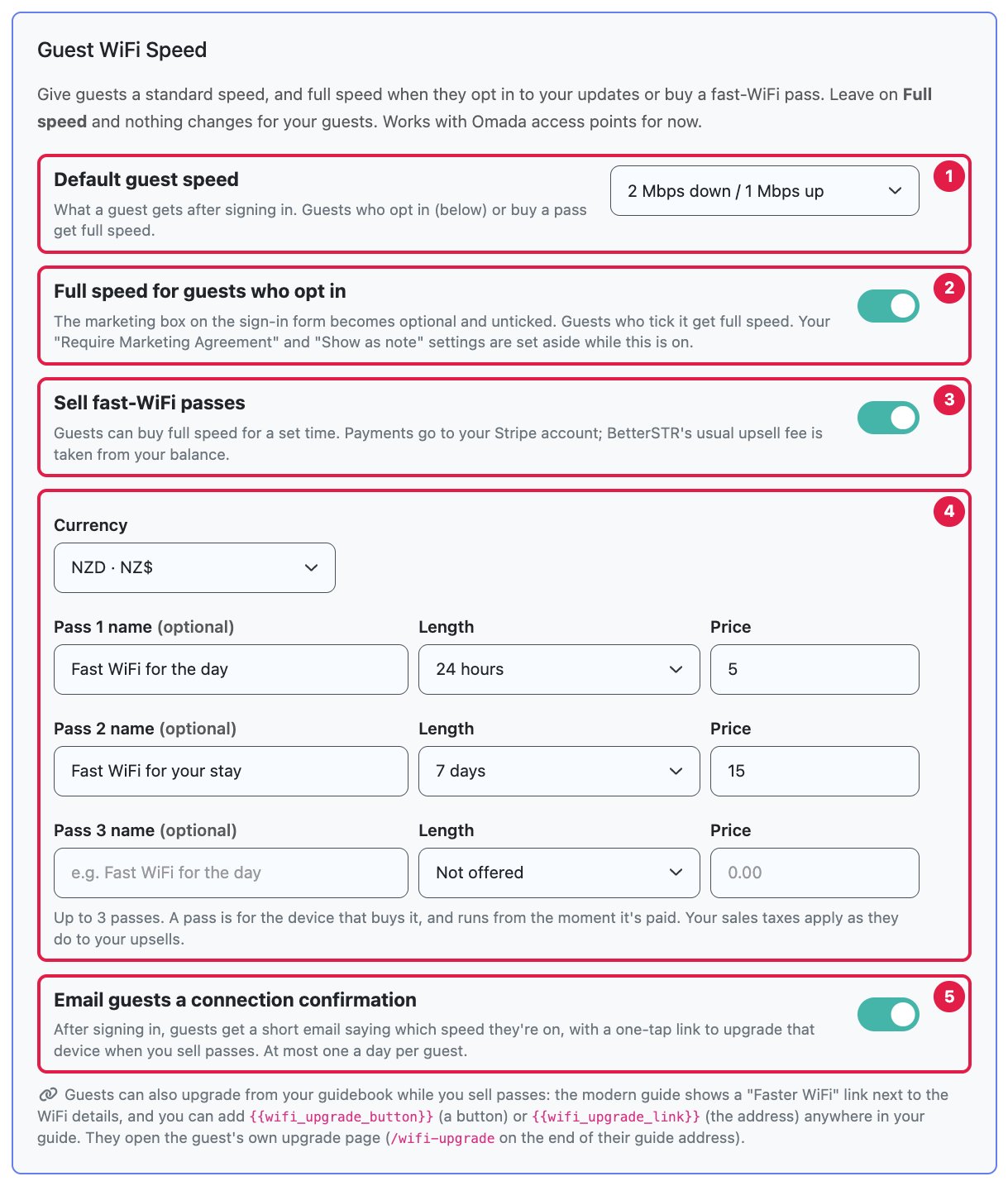
- Default guest speed: choose 5 Mbps down / 2 Mbps up or 2 Mbps down / 1 Mbps up. Leave it on Full speed (no limit) to keep things exactly as they are today.
- Full speed for guests who opt in: guests who tick the marketing box get full speed. While this is on, the box is always optional and unticked, so your Require Marketing Agreement and Show as note settings are set aside.
- Sell fast-WiFi passes: switch on to sell full speed for a set time. This is greyed out until Stripe is connected.
- Passes: pick your currency and set up to three passes. Give each one a name (optional), a length (1 hour, 24 hours, 3 days, 7 days or 30 days) and a price.
- Email guests a connection confirmation: after signing in, guests get a short email saying which speed they’re on, with a one-tap link to upgrade that device. At most one a day per guest.
Click Save Settings. If you change the default speed later, guests who are already connected move to the new speed straight away.
A different speed for one property
To use a different speed at one property, open Wifi Devices → Controllers and your Omada or UniFi controller, click the cog next to that property’s access point, and choose Guest speed at this property. Use my WiFi settings follows the default above. The opt-in and pass settings are shared by all your properties, so you can even leave your default on full speed and sell passes at just one property.
What guests see
The confirmation email
If you turned on the confirmation email, guests on standard speed get a message like this. The button opens the upgrade page with their device already chosen, so there is nothing to pick.
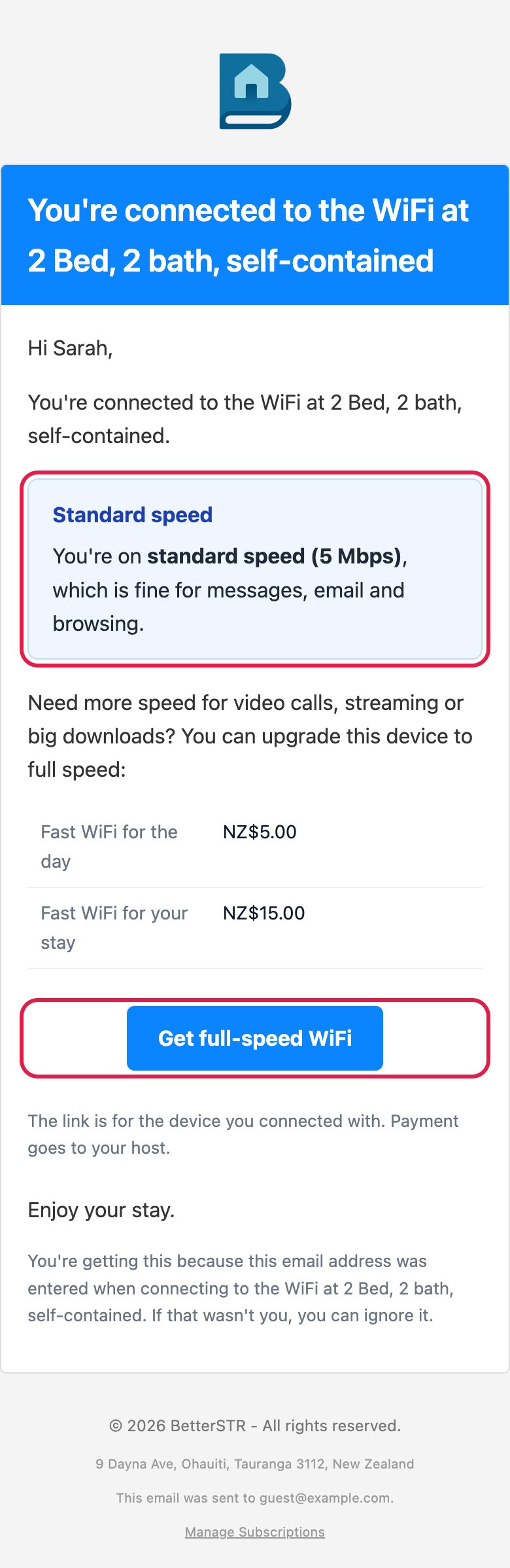
It is a service email about their connection, not marketing, so guests get it whether or not they opted in. It never includes promotions.
The upgrade page
The upgrade page shows the guest’s current speed and your passes. They tap a pass, pay by card through Stripe, and come back to a page that confirms full speed and when it ends.
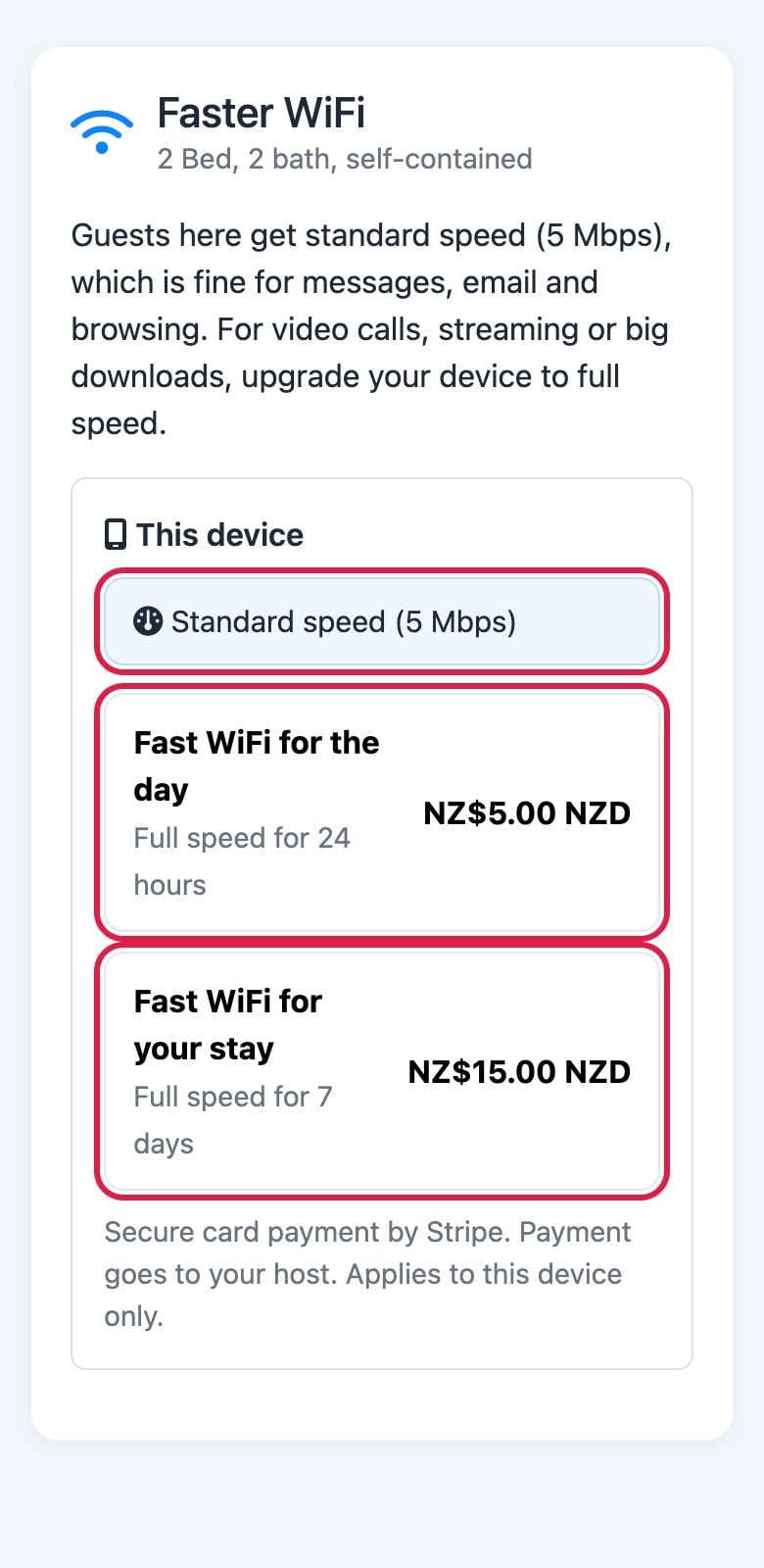
A pass is for the device that buys it and runs from the moment it is paid. If a pass is longer than your WiFi Access Duration, the guest stays signed in until the pass ends. When it ends, the device goes back to standard speed (or full speed if they opted in).
Add an upgrade link to your guidebook
While you sell passes, guests can also upgrade from your guidebook:
- The modern guide shows a Faster WiFi link next to the WiFi network and password.
- Add
{{wifi_upgrade_button}}anywhere in your guide for a Get faster WiFi button, or{{wifi_upgrade_link}}for the address on its own. In the guide editor, both are in the shortcode menu as Faster WiFi button.
The link opens the guest’s own upgrade page. During a stay, it lists the devices signed in to your WiFi since check-in. Otherwise it asks for the email they used to connect. The button and link disappear on their own when you stop selling passes.
Payments and fees
- Guests pay into your Stripe account. BetterSTR’s usual upsell fee is taken from your BetterSTR balance: 3% on properties with Premium Guidebook or BetterSTR Simple, 7% otherwise.
- Your sales taxes apply to passes the same way they do to your upsells.
- To refund a pass, refund the payment from your Stripe dashboard. The pass ends, the device goes back to standard speed, and the BetterSTR fee is credited back to your balance.
See who is on which speed
- Guest marketing list: each guest shows Standard speed, Full speed or Pass until ….
- Your controller page → users on an access point (Omada or UniFi): under the network name you’ll see the device’s limit (for example 5↓ / 2↑ Mbps limit) or Full speed. The Link Speed column there is the radio connection between the device and the access point, not the internet speed.
- WiFi settings → Guest WiFi Speed: your most recent pass sales, with amount and status.
Hosting on Airbnb?
Opt-in for full speed keeps marketing optional, which is in line with our reading of Airbnb’s house rules policy for bookings from 20 November 2026: every guest still gets working WiFi without having to join your list. If WiFi is listed as an amenity, pick a standard speed that is genuinely usable, and say in your listing that faster WiFi is available. See what Airbnb’s new house rules mean for WiFi portals.