Kiosk mode locks your BetterSTR TV down to the apps you offer. Guests still get your welcome screen, guidebook, Live TV and streaming apps, but the All Apps tile is hidden, so they can’t open the Play Store, the TV’s Settings or any other app installed on the TV. It is one switch in the Apps card of the TV’s settings.
Premium feature
Kiosk mode is part of Android TV Premium (and the free trial). On the free plan the All Apps tile is always shown. See Android TV: Free vs Premium features.
Turn kiosk mode on
- Go to Devices → Android TV, select the TV and click Edit. Then click Apps in the settings menu on the left.
- Switch Kiosk mode on (1).
- Click Save device. The TV picks up the change at its next check-in, usually within 15 minutes.
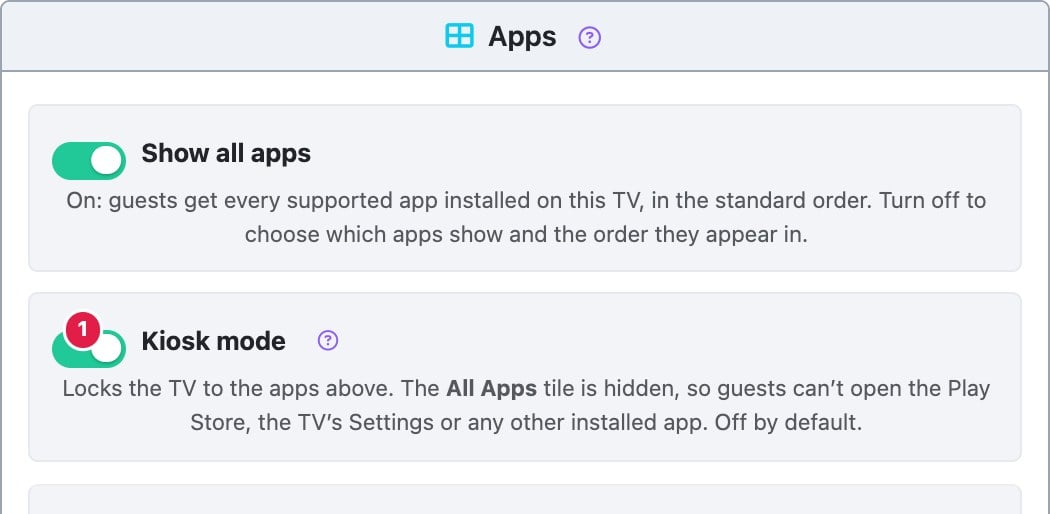
To turn it off again, switch Kiosk mode off and save. The All Apps tile comes back at the TV’s next check-in.
What changes on the TV
- The All Apps tile disappears from the Apps screen (or the row of tiles on the home screen, depending on the layout).
- With no All Apps tile, guests have no route to the Play Store, so they can’t install apps.
- Guests can’t open the TV’s Settings from the BetterSTR screens.
- Apps that are installed on the TV but don’t have a tile can’t be opened.
- Everything else stays the same: the welcome screen, guidebook, Wi-Fi QR, casting and every app tile you offer.
Kiosk mode and “Show all apps”
The two switches do different jobs, and you can use them in any combination:
- Show all apps decides which app tiles the guest gets. On, they get every supported app installed on the TV, in the standard order. Off, you choose the apps and their order.
- Kiosk mode decides whether guests can go beyond those tiles through the All Apps tile.
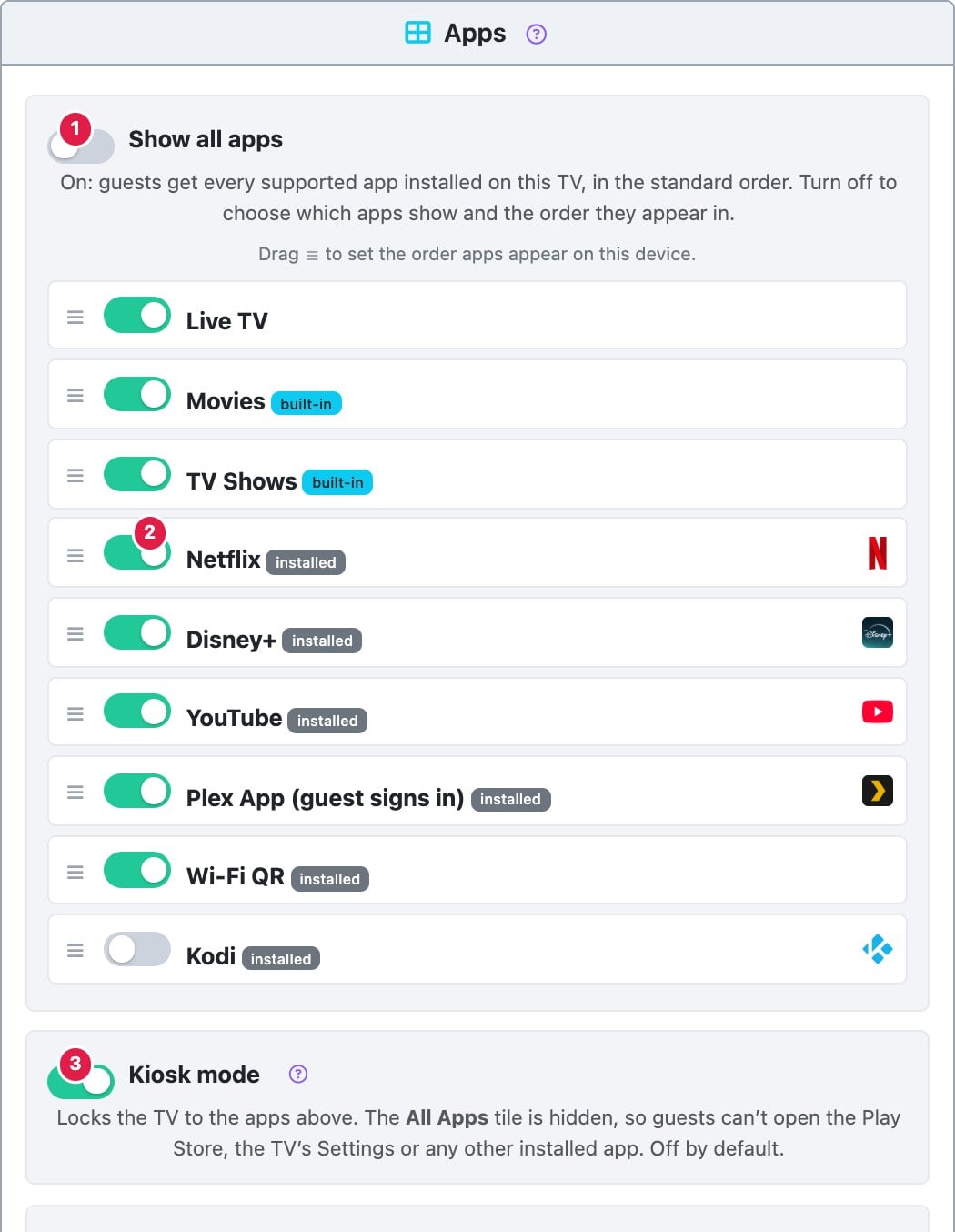
For the tightest setup, turn Show all apps off (1), switch on only the apps you want (2), and turn Kiosk mode on (3). Guests then see exactly the tiles you picked and nothing else. Choose & reorder the apps guests see covers the app list in detail.
Good to know
- Kiosk mode controls what the BetterSTR screens offer. Buttons on the TV’s own remote, such as a dedicated app or settings button, are handled by the TV itself.
- If guests sign in to streaming apps, pair kiosk mode with Clear app data on checkout so the next guest starts fresh.
- To limit which HDMI inputs guests can switch to, see Restrict which HDMI / TV inputs guests can use.
Reaching Settings or installing an app yourself
With kiosk mode on, you won’t find the Play Store or Settings on the TV either. When you need them:
- Switch Kiosk mode off, save, and wait for the TV’s next check-in. Install or change what you need through All Apps, then switch kiosk mode back on.
- Or select the TV in Devices → Android TV and click Leave launcher for 10 min at the bottom of its status panel. The TV steps out of the BetterSTR screens for ten minutes and then returns by itself.
A newly installed app shows in the Apps list after the TV’s next check-in, switched off. Switch it on there to give guests a tile for it.