By default every BetterSTR TV shows a photo slideshow screensaver when it’s left idle. If you’d rather one particular TV didn’t (a bedroom TV, a TV in a shared space, or one you use as a display), you can switch the screensaver off for just that device and leave all your other TVs as they are.
Turn the screensaver off for one TV
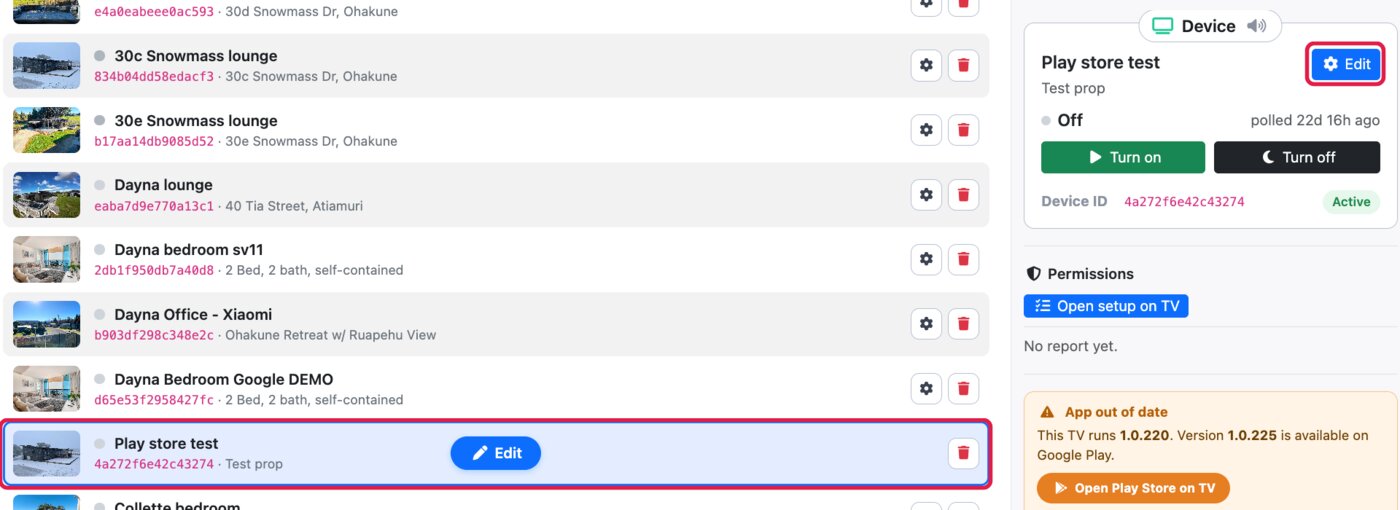
- Go to Devices → Android TV in your dashboard.
- Click the TV in the list, then click Edit (on the TV’s row or in the Device panel on the right).
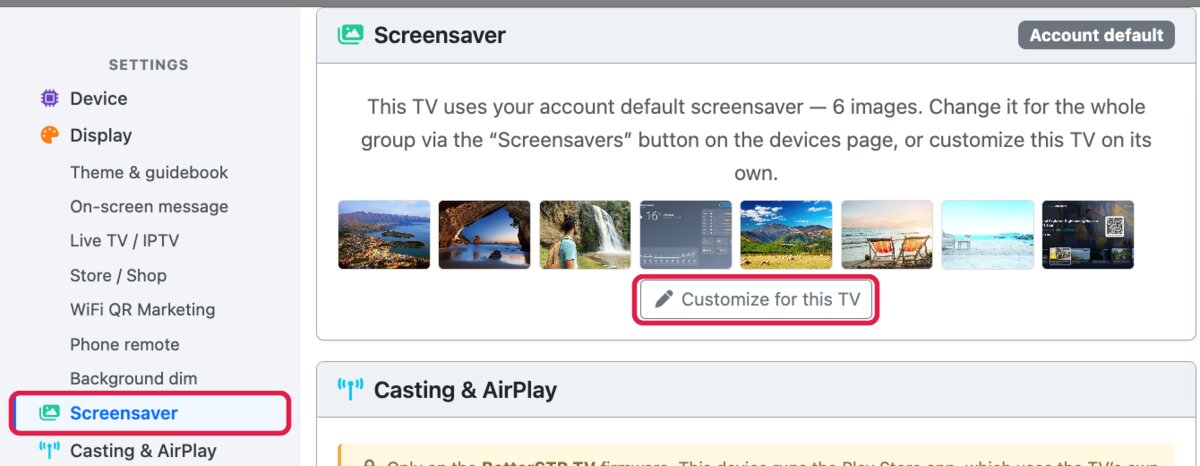
- In the Settings menu on the left, click Screensaver.
- If the TV is using your account default (or a tag’s default) screensaver, you’ll see a preview of those images. Click Customize for this TV.
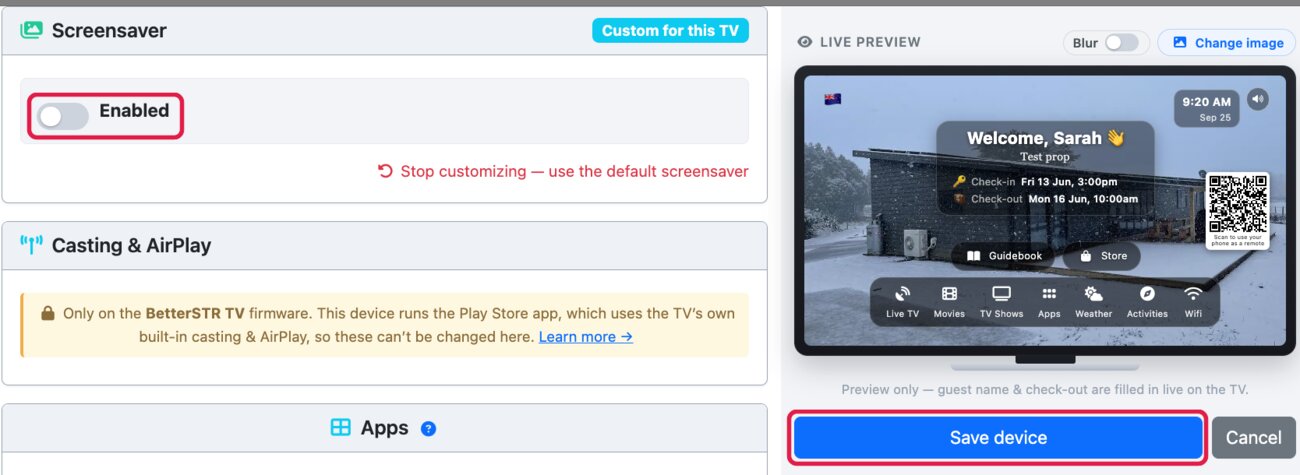
- Switch Enabled off.
- Click Save device. The TV picks up the change on its next check-in.
Only this TV is changed
Once you click Customize for this TV, the TV has its own screensaver settings and no longer follows your account or tag default. Changes you later make to the defaults (Screensavers in the Actions panel) won’t reach it.
To put it back on the default, edit the TV again, go to Screensaver, click Stop customizing — use the default screensaver and then Save device.
Turning it off on all your TVs
If you want the screensaver off everywhere, don’t change each TV one by one. On the Android TV devices page, click Screensavers in the Actions panel and switch off Enabled in your account default (or in a tag’s default, for just a group of TVs). Every TV that hasn’t been customised follows it.