Every BetterSTR TV shows an Activities tile on its home screen, where guests can browse tours and things to do near your property. If you’d rather not show it on a TV, you can switch it off for that device.
Turn Activities off for a TV
- Go to Devices → Android TV in your dashboard (gb.betterstr.com/members/android-tv).
- Click the TV in the list, then click Edit (on the TV’s row or in the Device panel on the right).
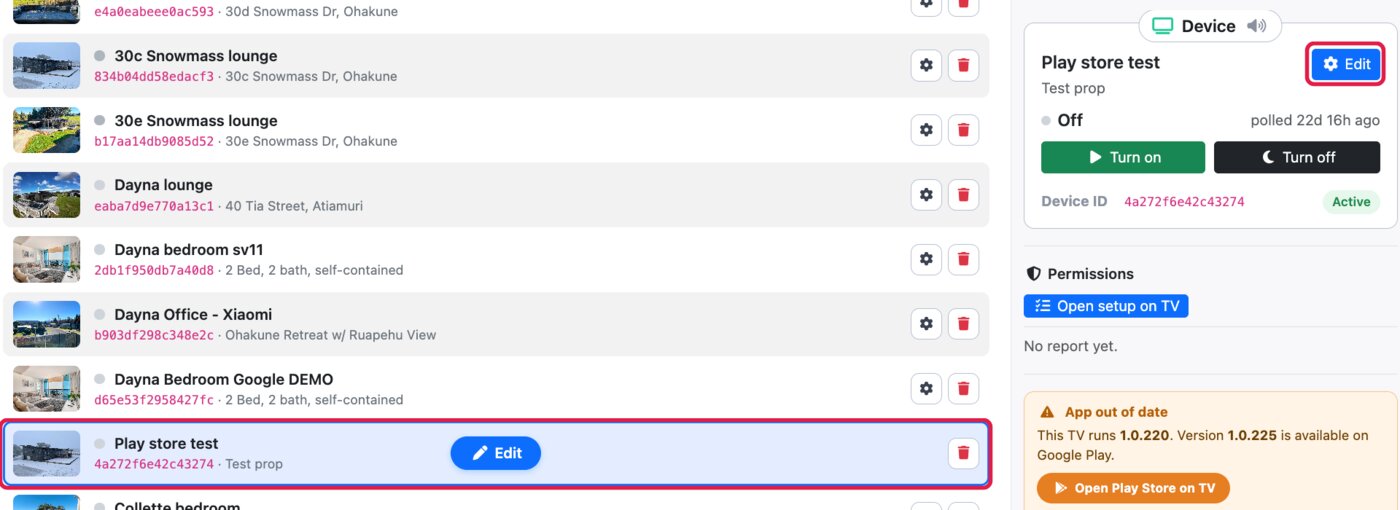
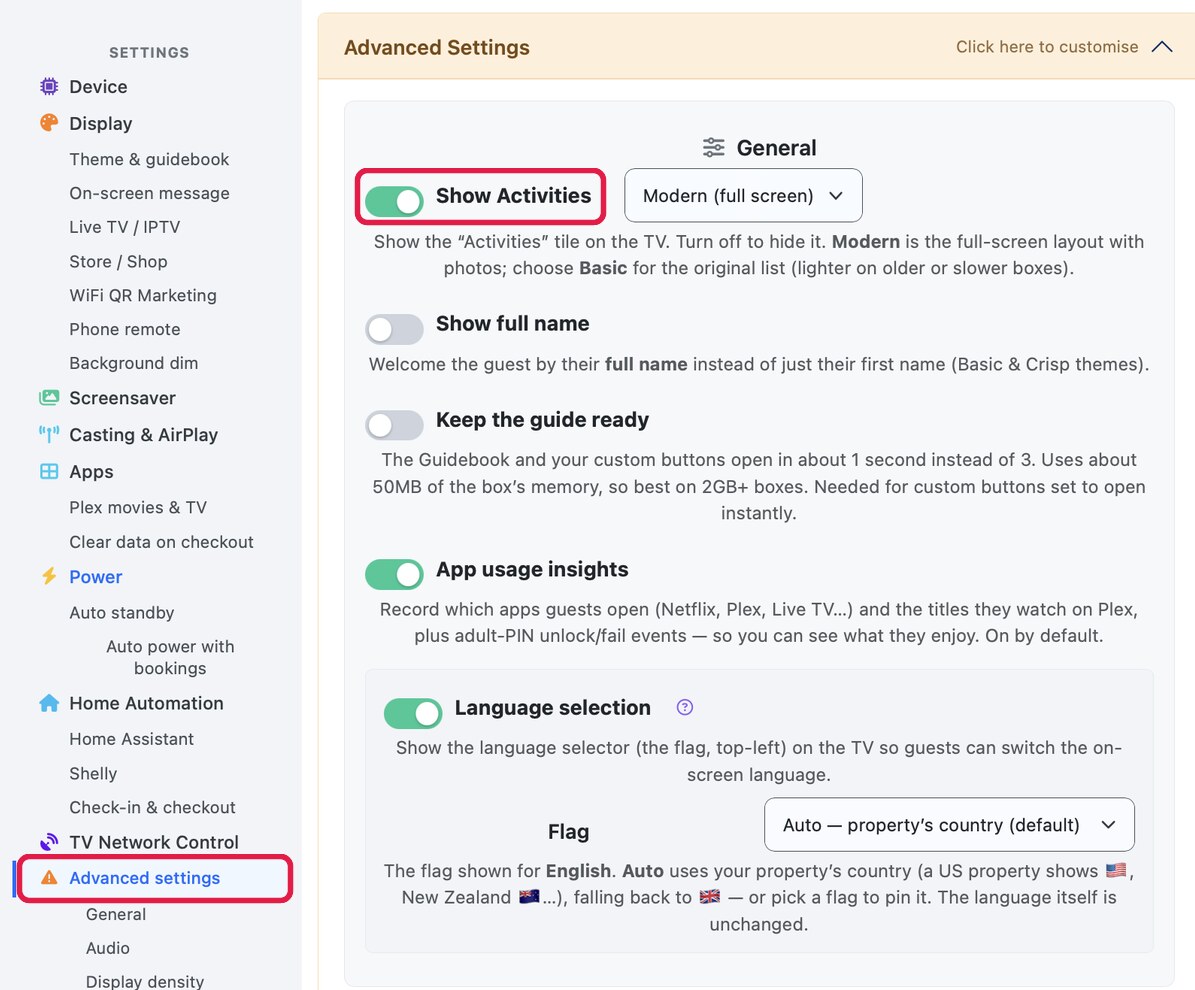
- In the Settings menu on the left, scroll down and click Advanced settings.
- Under General, switch Show Activities off.
- Click Save device. The TV picks up the change on its next check-in.
The Activities tile disappears from the TV’s home screen, and the Activities slide is left out of the screensaver as well. The setting is per TV, so repeat the steps for each TV you want to change.
Advanced settings need TV Premium
On a free TV the Advanced settings are locked and Activities stays on. Upgrade the TV to Premium to switch it off (click the Upgrade button on the locked section). Every new account has Premium during its free trial. See Android TV: Free vs Premium features.
Activities showing the wrong area?
If the reason you want to remove Activities is that they are too far from your property, note that the TV picks them from your property’s location. In your guidebook you can choose the exact town or city instead: see Activities in my guide are too far away: change the location.