Guests often sign in to Netflix, YouTube, Disney+ and other streaming apps on your TV and forget to sign out when they leave. BetterSTR TV can sign them out for you: automatically at each guest’s checkout, or straight away whenever you click a button. The next guest then starts with clean apps and never sees the last guest’s account.
Watch it first
What you need
Premium: clearing app data on checkout is a Premium TV feature. On a free TV it stays off. See Free vs Premium features.
A BetterSTR TV box (Device Owner mode): clearing another app’s data is something Android only lets a TV’s Device Owner do. Our ready-made BetterSTR TV boxes are set up that way, and so is a TV you convert yourself with our setup tool.
If the TV runs the Play Store version of the app, the switch shows a lock with Requires Device Owner mode instead. See Setting up your Android TV, or buy a ready-made device.
Sign guests out automatically at checkout
- Go to Devices → Android TV in your dashboard.
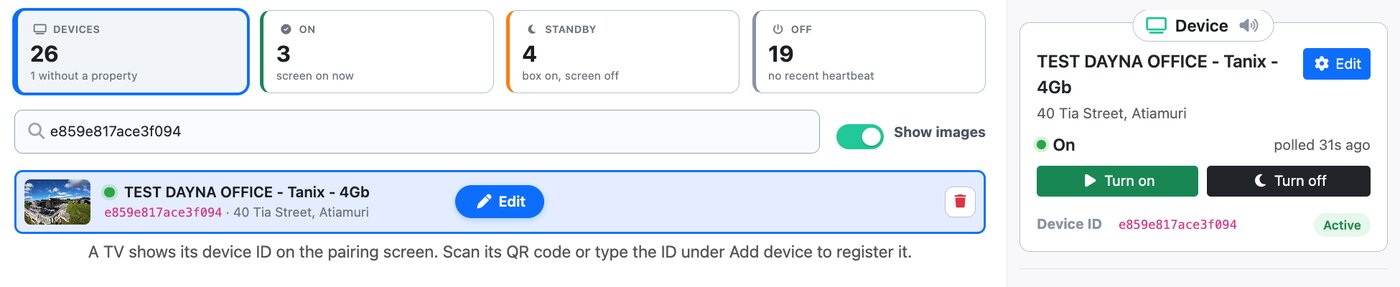
- Find your TV in the list and click Edit (on the TV’s row or in the Device panel on the right).
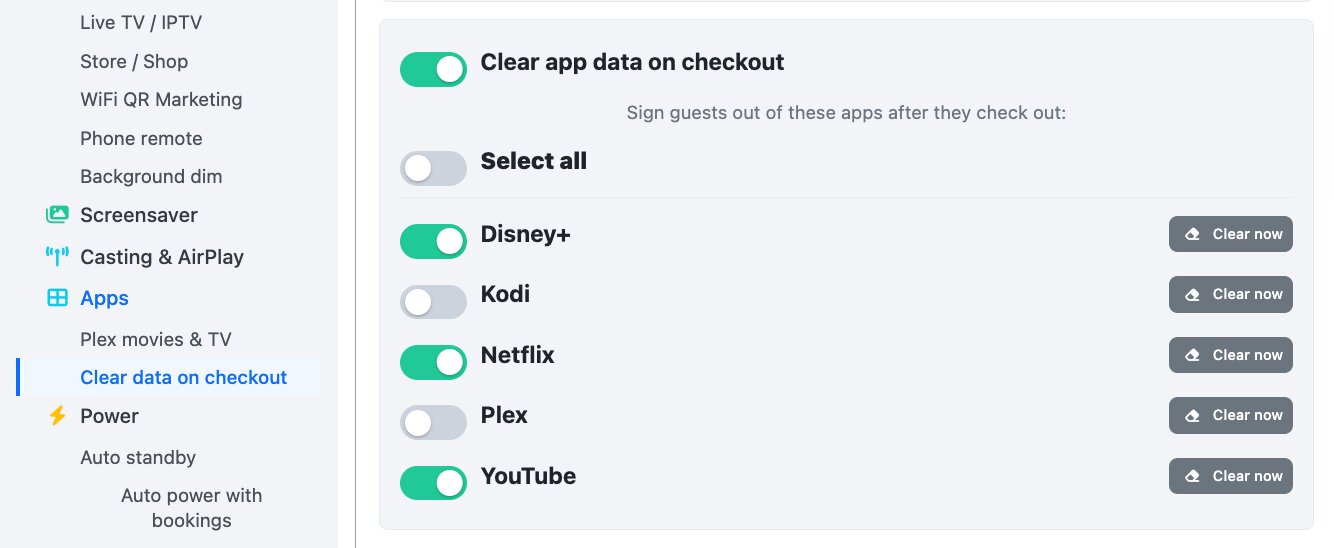
- In the Settings menu on the left, click Apps, then Clear data on checkout.
- Switch on Clear app data on checkout. A list of the streaming apps installed on that TV appears.
- Switch on each app you want guests signed out of, or switch on Select all for every app.
- Click Save device.
From then on, when a guest’s stay ends the TV clears the data of the apps you picked, which signs them out. It happens once per stay, never during one:
- Back-to-back bookings are covered: if a new guest’s stay starts straight after the last one, the previous guest is still signed out first.
- Extended stays are left alone: if a stay is re-issued as a new booking for the same guest, they stay signed in.
Sign out of an app straight away (Clear now)
Need to sign someone out right now, say a guest left early or you spotted an account left signed in? Use Clear now.
- Edit the TV and go to Apps → Clear data on checkout as above. Switch on Clear app data on checkout if the app list isn’t showing.
- Click Clear now next to the app (Netflix, YouTube, whichever it is).
- Check the TV name and click Clear data.
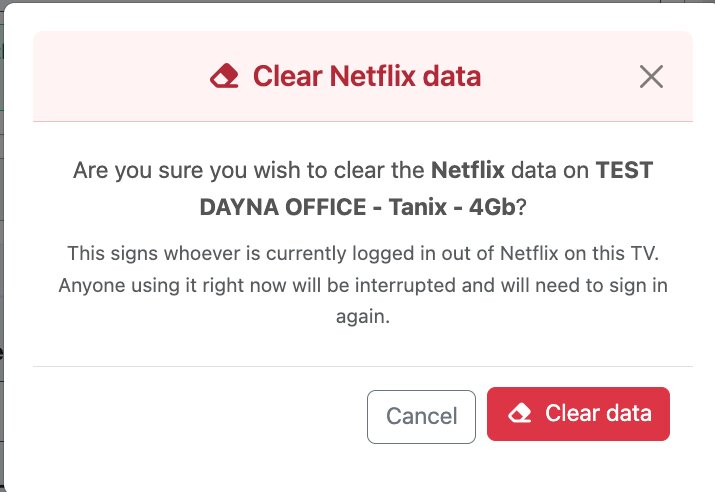
Within a minute or two the TV signs whoever is logged in out of that app. Anyone watching it at that moment is interrupted and has to sign in again. If the TV is switched off, the clear waits and runs as soon as the TV is back on.
What clearing an app does
Clearing an app resets it to how it was when first installed: the account is signed out, and that app’s profiles, downloads and settings on the TV are removed. The app itself stays installed.
Don’t pick an app you’ve signed in to yourself for guests to use (for example your own Plex or a shared streaming account), or you’ll need to sign it in again after every checkout.