Every BetterSTR TV can use one of three home screen themes: Nova, Crisp or Basic. You can change the theme for each TV from your dashboard, add your hotel or property logo, and play a video behind the home screen instead of a photo.
The three themes
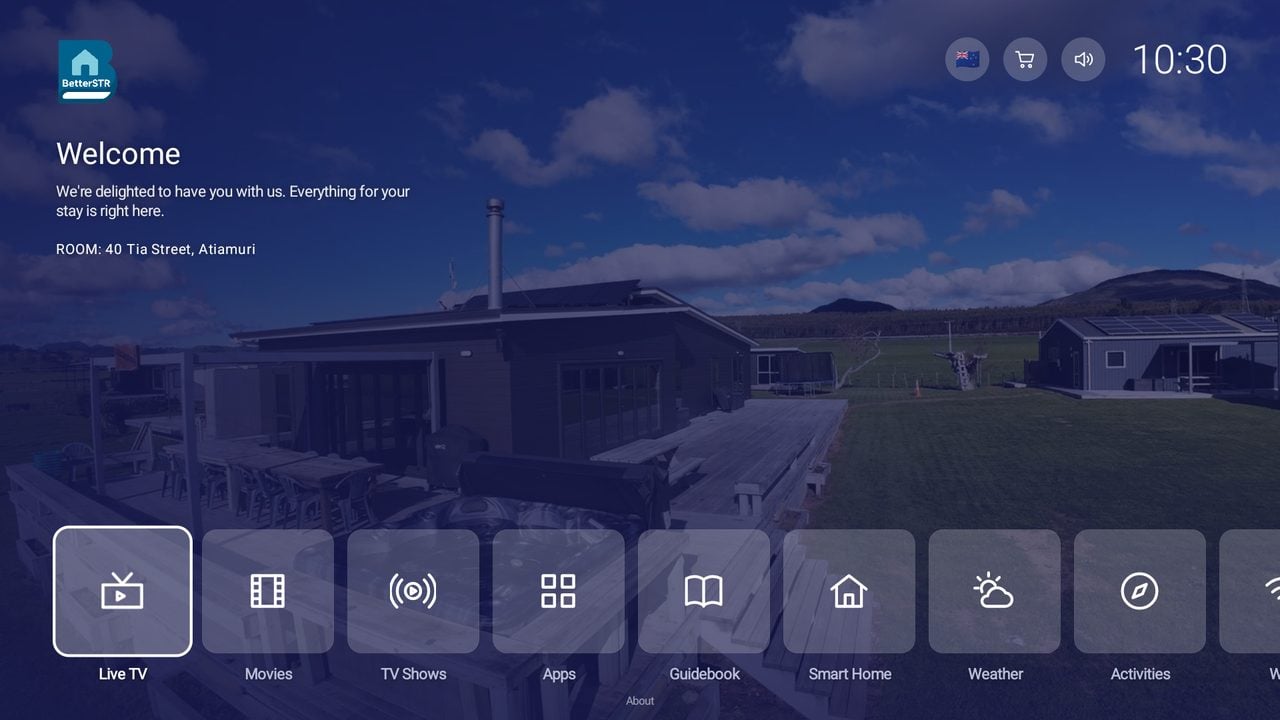
Nova (hotel style)
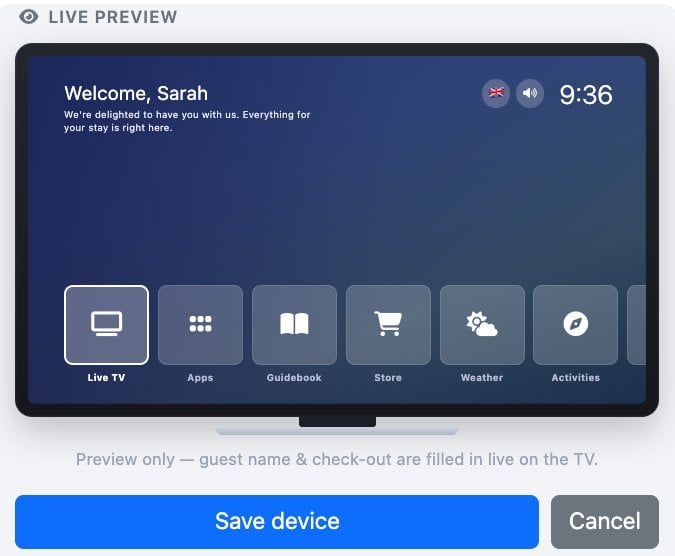
A clean, hotel-style home screen: your own logo top left for your branding, a welcome message, and a row of large tiles along the bottom. It works well in hotels, motels and serviced apartments. Nova needs TV app version 1.0.226 or later.
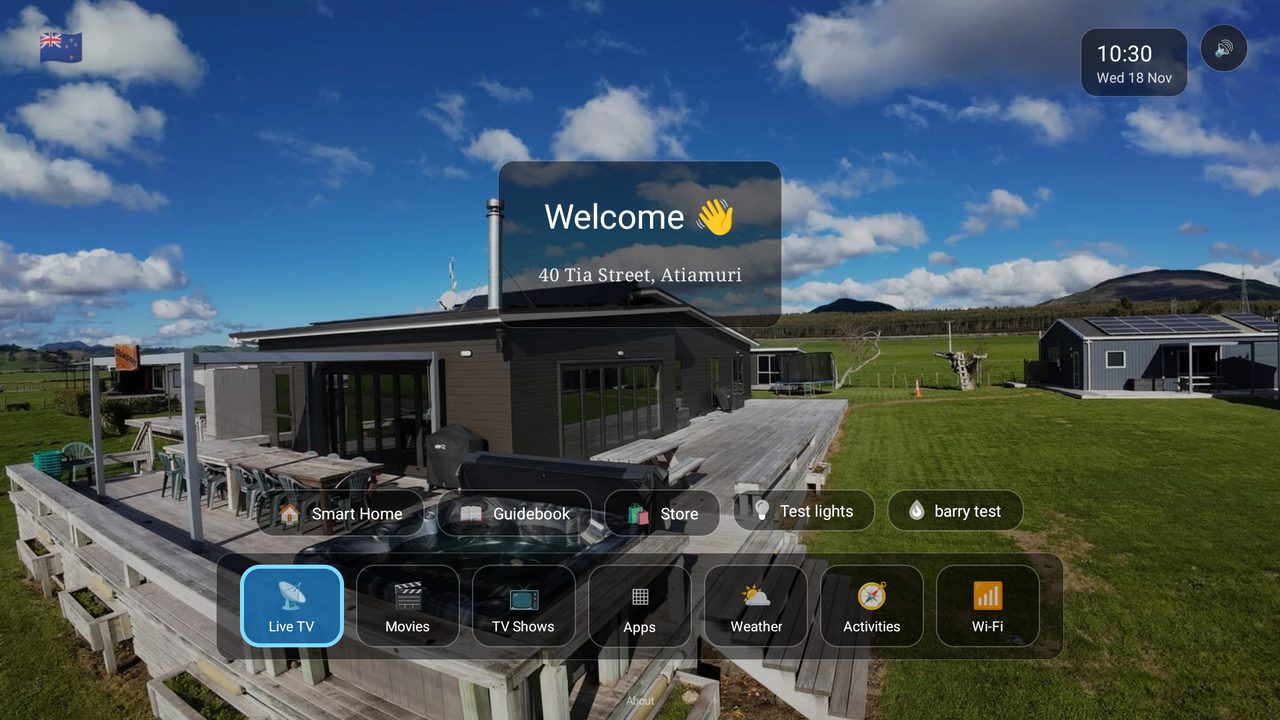
Crisp (welcome)
The default theme. A welcome card in the middle greets the guest by name with their check-in and check-out, and the apps sit in a dock along the bottom.
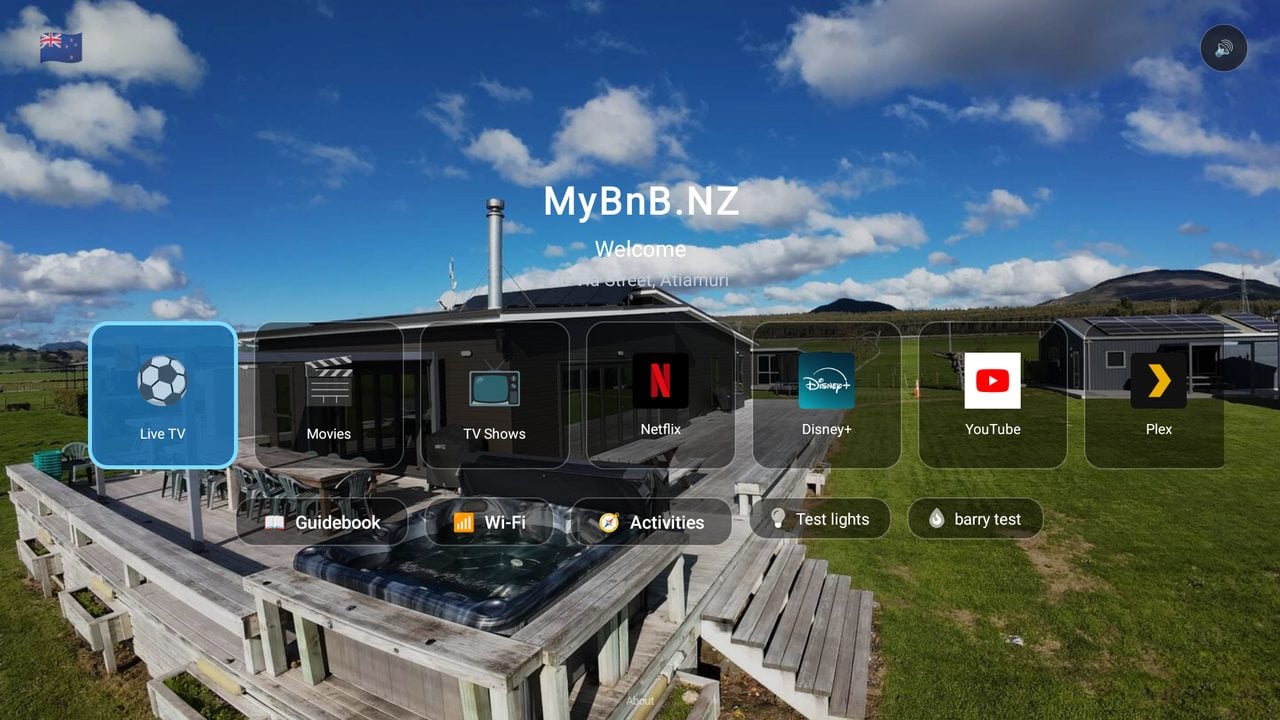
Basic
The original layout: your property name in large text with big app tiles, including streaming apps like Netflix and YouTube, in the middle of the screen.
Change the theme
- Go to Devices → Android TV in your dashboard.
- Click the TV in the list, then click Edit.
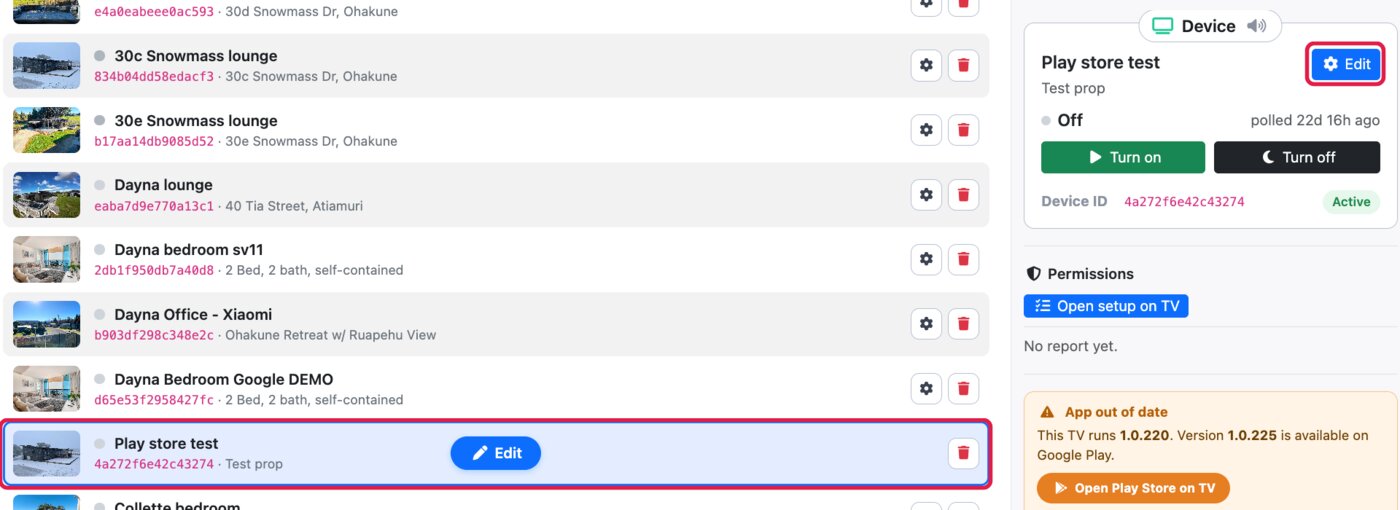
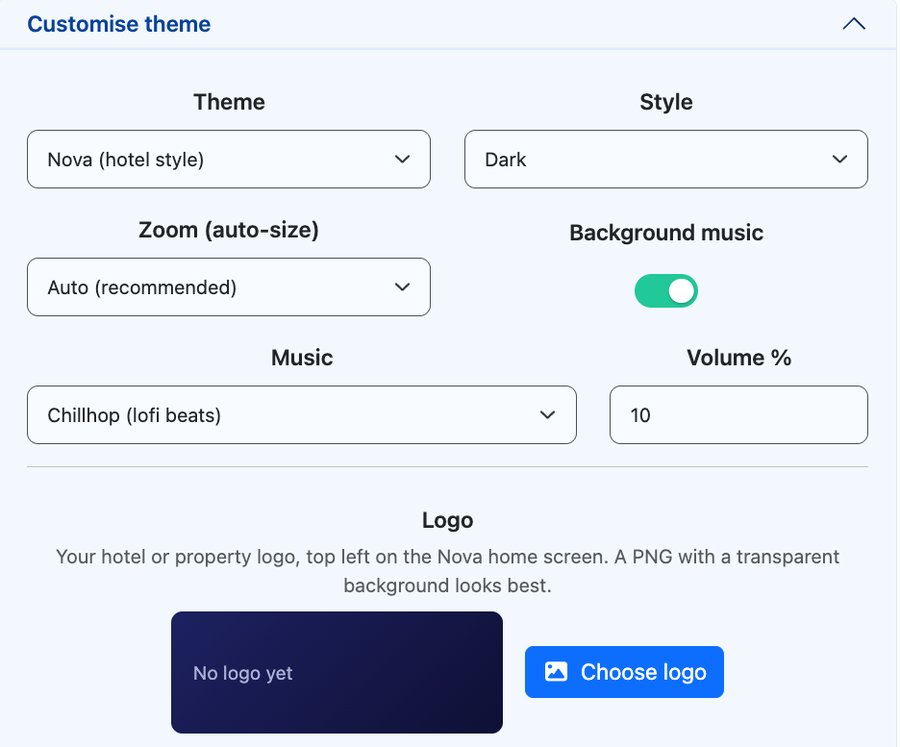
- Under Display, the Customise theme section is open. Pick Nova (hotel style), Crisp (welcome) or Basic from the Theme list. Style sets light or dark colours for the guidebook and weather screens.
- The Live preview on the right changes as you pick, so you can see the theme before you save.
- Click Save device. The TV switches to the new theme on its next check-in, usually within a minute or two. Press Home on the remote to make it check in straight away.
Nova not in the list?
Nova and video backgrounds need TV app version 1.0.226 or later. TVs update themselves automatically, and you can see the version a TV is running in its status panel on the Android TV page. Until it updates, an older TV shows the Crisp theme.
Add your logo (Nova)
Nova puts your own logo on the home screen, so every guest sees your branding when they turn on the TV. You can add or change the logo at any time.
With Nova picked, a Logo option appears below the theme. Click Choose logo and pick an image from your Media Library, or upload a new one. It shows top left on the home screen. A PNG with a transparent background looks best. Click Remove to go back to no logo, then Save device.
Play a video behind the home screen
Instead of a still photo, the home screen can play a video on a loop, muted, in any of the three themes. Under Video background, either:
- paste an
https://link to an MP4 file and click Use link, or - click Upload MP4 to upload a video from your computer.
The video is checked first. When it says Looks good, click Save device.
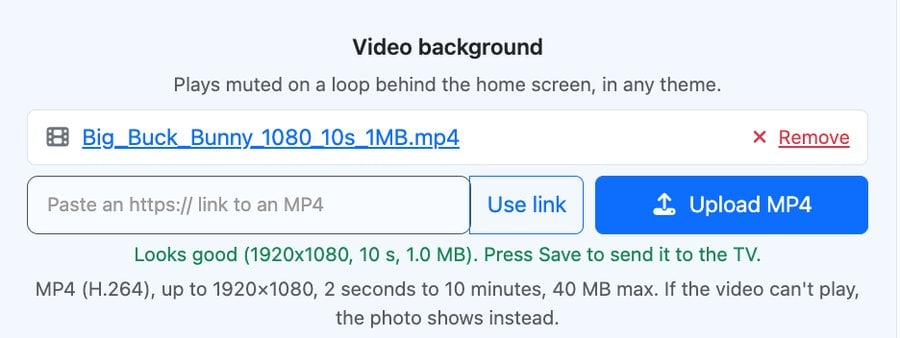
Want to try it before you have your own video? Use this short test clip:
https://test-videos.co.uk/vids/bigbuckbunny/mp4/h264/1080/Big_Buck_Bunny_1080_10s_1MB.mp4Video requirements:
- MP4 (H.264), up to 1920×1080
- 2 seconds to 10 minutes long, 40 MB at most
- A short, slow clip that loops cleanly (a pool, a view, the lobby) works best. Sound is always off.
The TV downloads the video once and plays it from its own storage, so it doesn’t use your internet connection every time it loops. If the video can’t play, the TV shows your photo instead. Uploaded videos count towards your account’s media storage, together with your Media Library images. To stop the video, click Remove next to it and save.