When a booking starts, your BetterSTR TV turns on and shows the guest’s welcome screen with their name and stay details. The screensaver used to start a couple of minutes later, so a guest who arrived that evening walked in to a photo slideshow and never saw the welcome. With Wait until the guest first uses the TV switched on, the screensaver holds off until your guest has actually picked up the remote.
How it works
- From a couple of hours before check-in, the TV stays on the welcome screen and the screensaver does not start.
- The first time the guest uses the TV after their check-in time (opens an app, Live TV, the guidebook, Weather, Wi-Fi and so on), the wait ends. This usually takes effect within a minute or two.
- For the rest of the stay the screensaver runs exactly as you have it set up.
- The next booking starts waiting again, so every guest gets their own welcome.
Background music keeps playing on the welcome screen as it does today. Anything done on the TV before the check-in time, such as a cleaner checking it works, does not end the wait.
A Premium feature, on by default
You don’t need to do anything to get this. Every Premium TV (including TVs in their free trial) waits for the guest unless you switch it off using the steps below. On the free plan the screensaver starts after its usual idle time.
Change it for one TV
- Go to Devices → Android TV in your dashboard.
- Click the TV in the list, then click Edit.
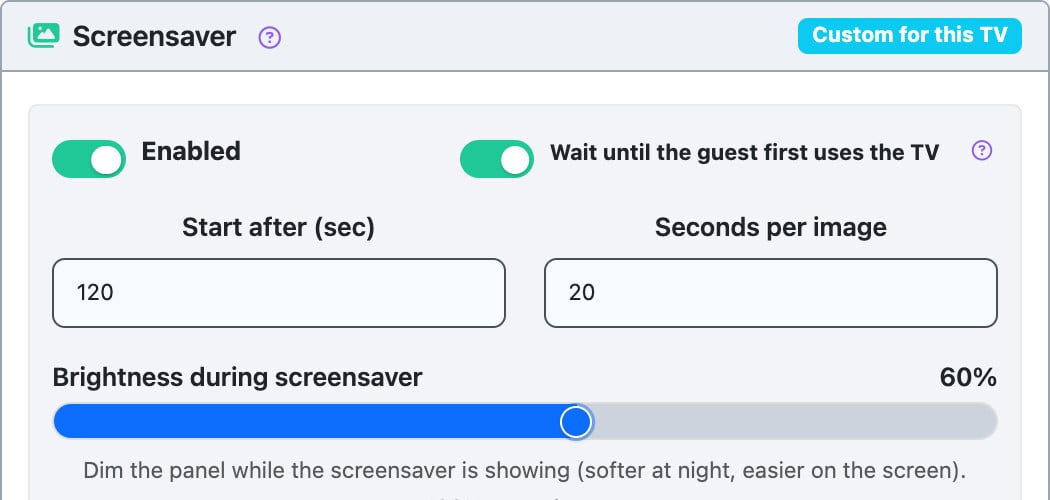
- In the Settings menu on the left, click Screensaver.
- If the TV is following your account or tag default, click Customize for this TV.
- Switch Wait until the guest first uses the TV on or off. It sits on the same row as Enabled.
- Click Save device.
Change it for all your TVs, or a group of them
If you manage several TVs, set it once in your screensaver defaults instead of editing each TV.
- Go to Devices → Android TV.
- In the Actions panel, click Screensavers.
- Click the cog beside All my TVs (account default) to change every TV, or open (or add) a tag default to change only the TVs at properties with that tag.
- Switch Wait until the guest first uses the TV on or off.
- Click Save default.
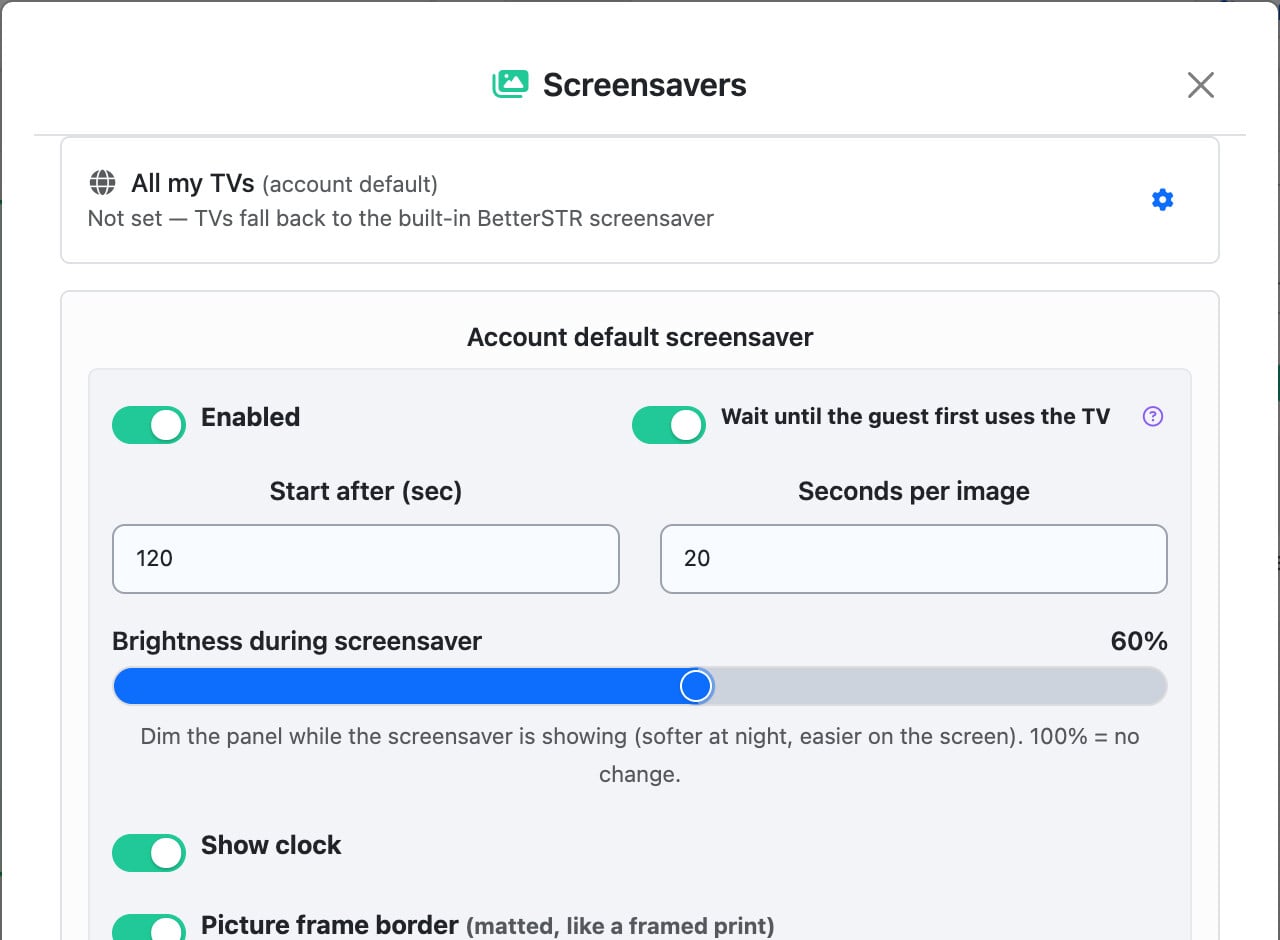
A TV uses its own screensaver settings first if you have customised it, then its property’s tag default, then your account default.
If the guest never uses the TV
The welcome screen stays up and your Auto standby setting decides when the TV turns off, the same as it does at any other time. A TV that turns on at 3pm for a guest who arrives at 9pm will still be showing their welcome, as long as your standby time allows it.
What it needs
- A Premium TV, or one still in its free trial.
- App usage insights switched on for the TV (in the TV’s Advanced settings, under General). It is on unless you have turned it off. This is how we know the guest has started using the TV.
- A recent version of the BetterSTR TV app. TVs that update themselves already have it.
If a TV doesn’t meet these, the switch shows a short note explaining why, and that TV’s screensaver simply starts as normal.