If you installed BetterSTR TV from the Google Play Store, the Play Store on the TV is what keeps the app up to date. Most TVs update by themselves, but some fall behind: auto-update is switched off, the TV is rarely on, or the Play Store is waiting for you to approve the update. A TV on an old version misses bug fixes, stability improvements and new features, so it’s worth a couple of minutes to bring it up to date.
How to tell a TV is out of date
- In the members area, go to Devices → Android TV.
- Click the TV in your device list.

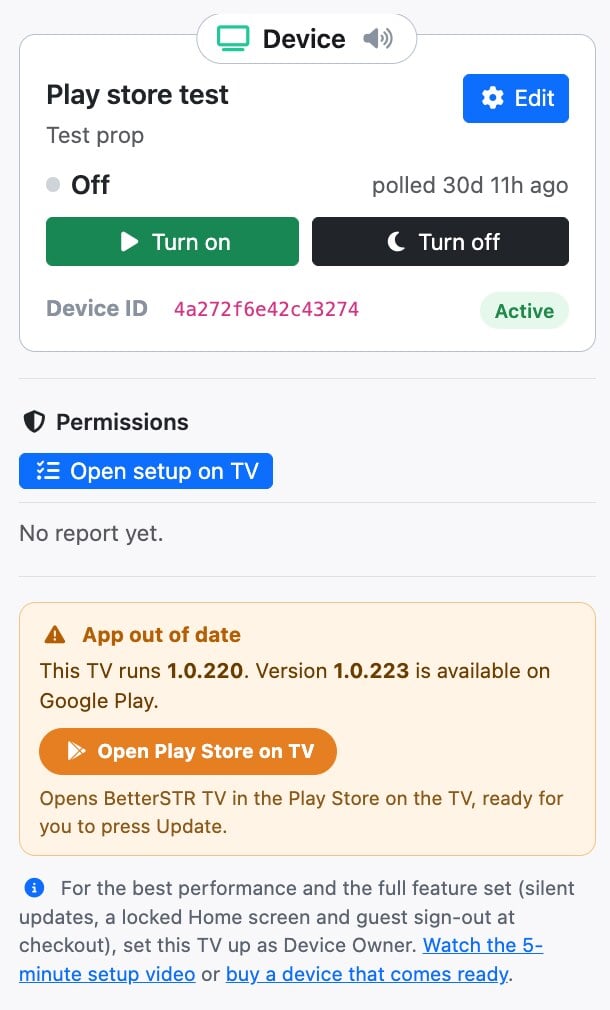
The Device panel opens on the right. If the TV is behind, an orange App out of date box shows the version the TV runs and the version available on Google Play.
We also email you once a month with a list of any TVs on your account that are running behind.
Update from your dashboard (quickest)
Have the TV switched on and the remote in hand.
- In the App out of date box, click Open Play Store on TV.
- Within a few seconds the TV opens BetterSTR TV’s page in the Play Store. Pressing Home on the remote makes the TV pick the request up straight away.
- On the TV, move to Update with the remote and press OK.
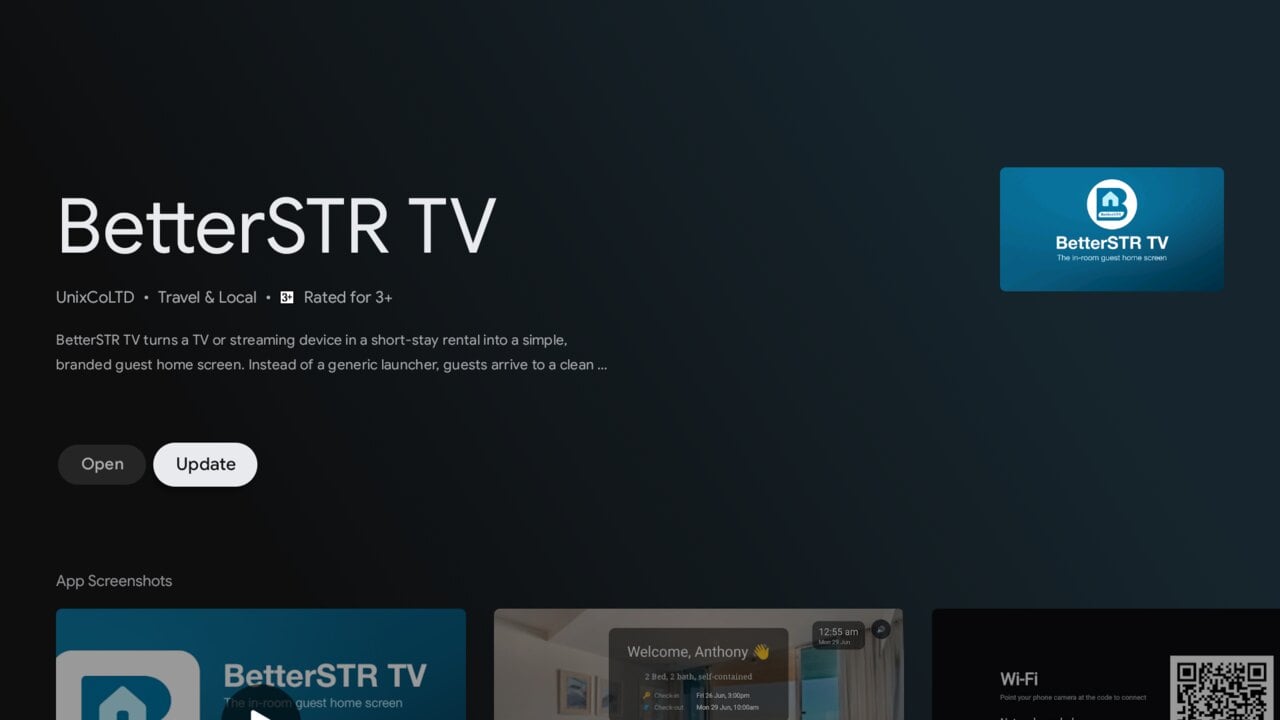
The update downloads and installs in a minute or two. When it finishes, press Home or choose Open to return to your welcome screen. Back in your dashboard, the orange box disappears once the TV has checked in on the new version.
No Update button?
If the Play Store only shows Open, the TV already has the newest version Google Play offers for that device. Give the dashboard a few minutes to catch up.
Nothing happens on the TV?
The Open Play Store on TV button needs BetterSTR TV 1.0.187 or newer on the TV. If the TV runs an older version than that, or the Play Store doesn’t open after a minute, update on the TV itself with the steps below. Once it’s up to date, the button works from then on.
Update on the TV itself
If you’re at the TV without your dashboard open, you can do the same thing from the TV’s own menus. BetterSTR TV takes over the Home button, so first step out of it:
- In your dashboard, select the TV and click Leave launcher for 10 min at the bottom of the Device panel. See Temporarily leave the BetterSTR launcher.
- On the remote, press Home twice to reach the TV’s own home screen.
- Open the Google Play Store app. You’ll find it under Apps on the TV’s home screen, or go to Settings → Apps, choose Google Play Store and select Open.
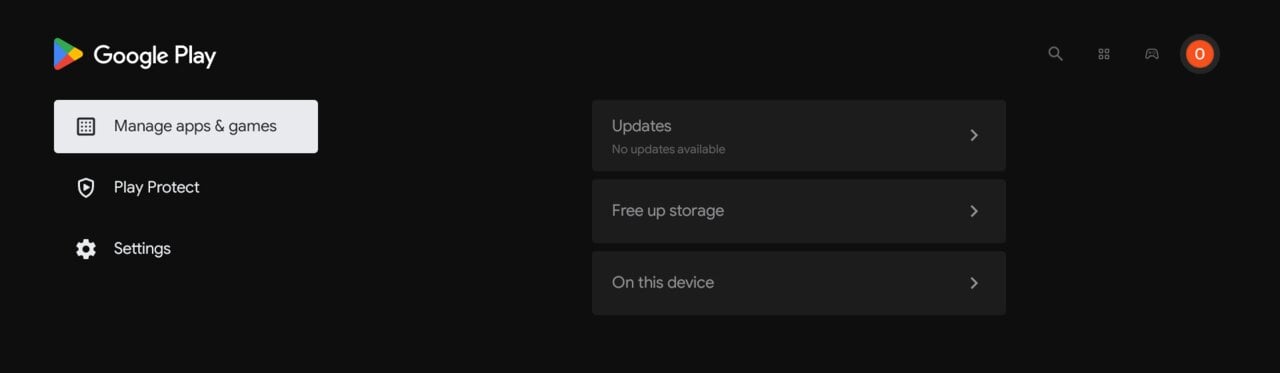
- Select your profile picture in the top right, then Manage apps & games.
- Open Updates, choose BetterSTR TV and select Update.
BetterSTR takes the home screen back by itself when the 10 minutes are up.
Turn on auto-update so it doesn’t happen again
While you’re in the Play Store on the TV, check that it is allowed to update apps by itself:
- Select your profile picture in the top right, then Settings.
- Open Auto-update apps.
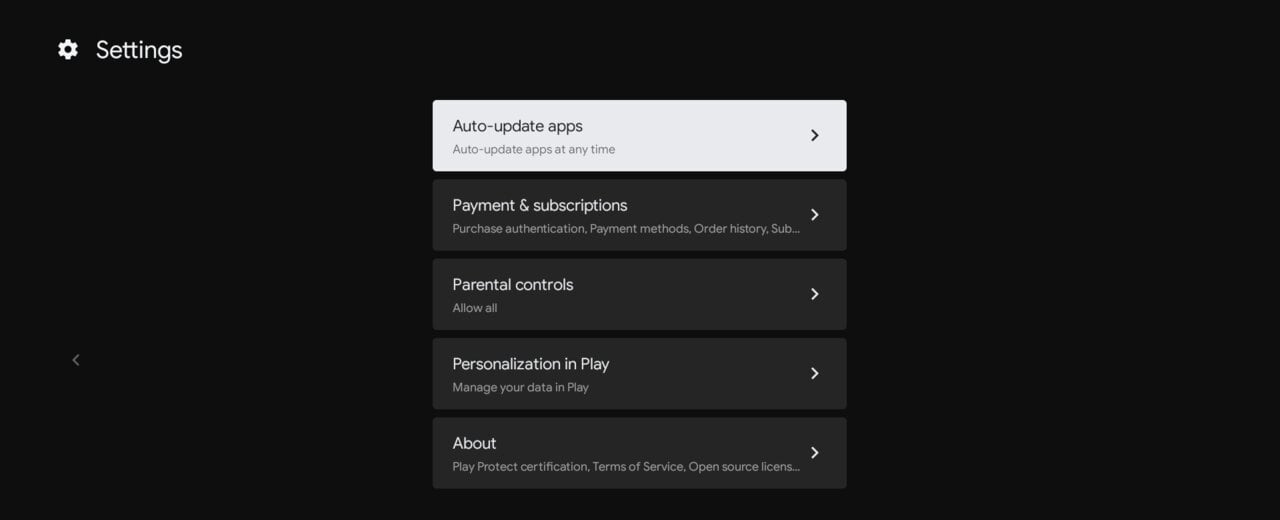
- Choose Auto-update apps at any time.

The Play Store needs a Google account signed in on the TV to update apps. If it asks you to sign in, do that first.
Still showing as out of date?
- Give it a few minutes. The dashboard updates when the TV next checks in. Opening the BetterSTR TV app on the TV makes it check in straight away.
- The TV hasn’t checked in for a while. Check it is switched on and still connected to Wi-Fi. A changed Wi-Fi password is the most common cause.
- The update won’t install. Free up some storage on the TV (Manage apps & games → Free up storage in the Play Store), then try again.
- Need a hand? Book a free 1 on 1 call and we’ll go through it with you.