Got a listing in your PMS that doesn’t need a guidebook, such as a garage, a parking space, a storage unit or a room you don’t rent out? You can stop it being billed for Premium Guidebook in two ways. The quickest is to switch it off on your Integrations page.
Don’t delete the property
If the listing still exists in your PMS, deleting it in BetterSTR won’t keep it gone. BetterSTR stays in step with your PMS, so the property is created again:
- whenever your PMS sends an update about that listing, such as a new or changed reservation, and
- whenever a manual or scheduled property sync checks your PMS for listings that are missing in BetterSTR.
When it comes back, it’s treated as a new property and switched on, so billing starts again. Switching it off (below) is permanent: syncs never turn a property back on once you’ve switched it off.
Method 1: Switch the property off (simplest)
- Go to Integrations. If you’re connected to a PMS, this opens your PMS’s property list.
- Find the property and turn its switch off.
- Click Update Selected to save.
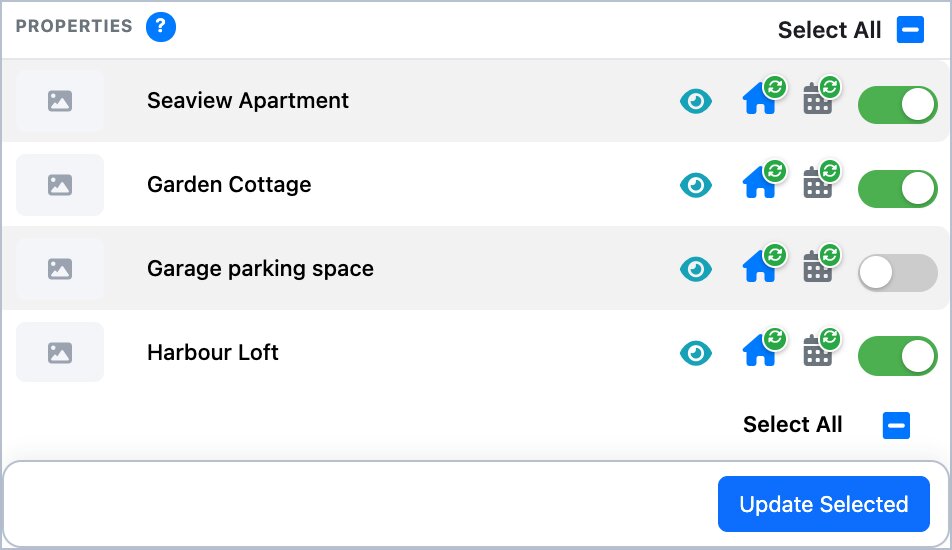
A switched-off property:
- isn’t counted in your Premium Guidebook bill from your next billing date, and
- doesn’t create guidebooks or send guest messages for new reservations.
This works the same way for every PMS. You can switch it back on at any time.
Method 2: Choose which properties get Premium
Use this if you want the property to stay on and keep its free guidebook, but not be billed for Premium. By default, Premium Guidebook covers all your properties.
- Go to Subscription → Add-ons.
- Under Which properties get Premium?, click Change properties.

- Choose Only the properties I pick.
- Turn off the properties you don’t want on Premium, then click Save properties.
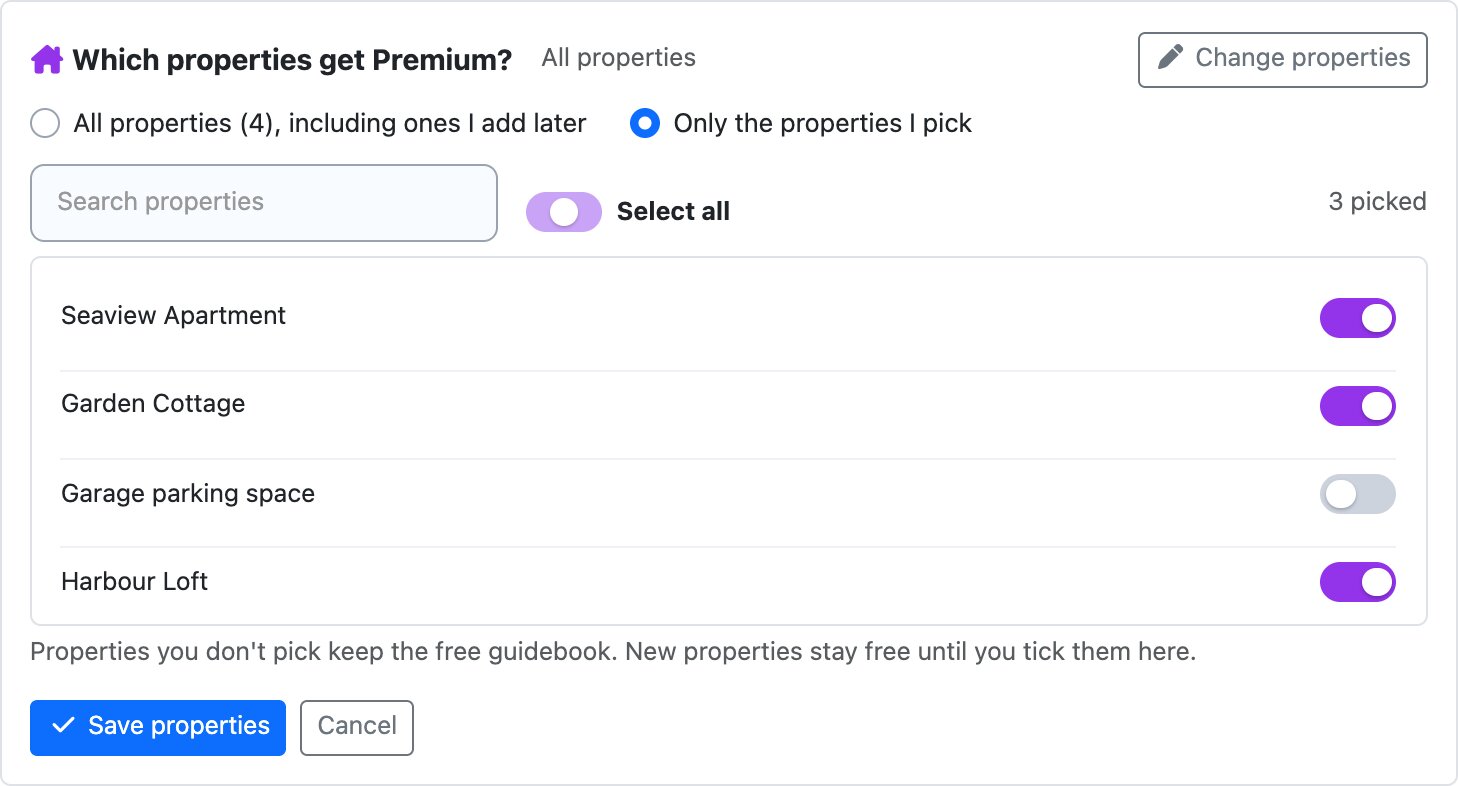
Properties you don’t pick keep the free guidebook. Once you’ve chosen Only the properties I pick, any new listings that arrive from your PMS later also stay free until you turn them on here. That stops a new listing from being billed without you noticing.
Which one should I use?
If the listing will never have guests who need a guidebook, switch it off (Method 1). If it does have guests and you’re happy for them to get the free guidebook, keep it on and leave it out of Premium (Method 2).