You can drop a video, a document or a map straight into any section of your guidebook without touching an embed code. Paste the link, save, and the guidebook turns it into an inline player, a scrollable document preview or an interactive map. Guests can watch, read or explore right there, or open it in a new tab.
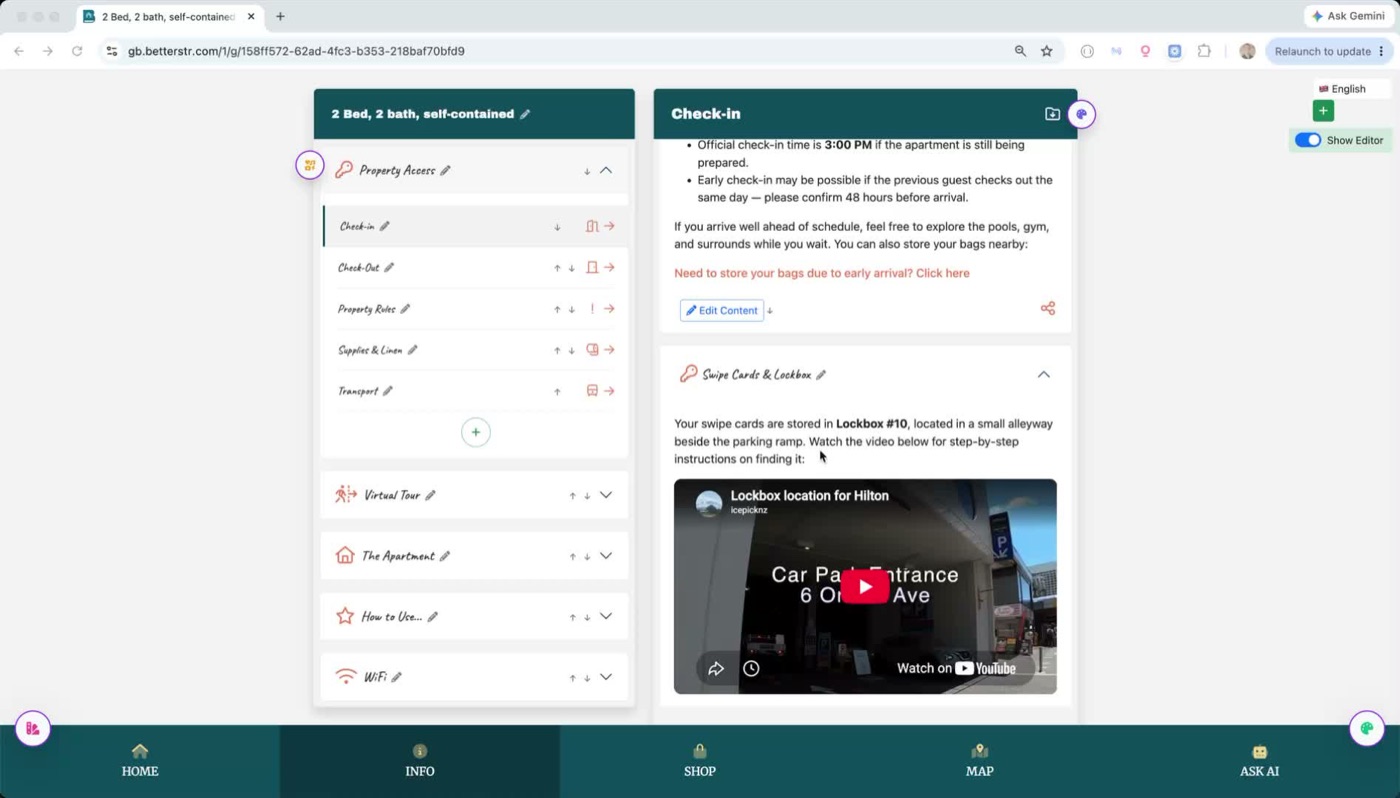
Step 1: Open the section for editing
Open your guidebook, make sure Show Editor is switched on, and go to the section where the video or document should appear. Click Edit Content under the section text.
Step 2: Paste the link and save
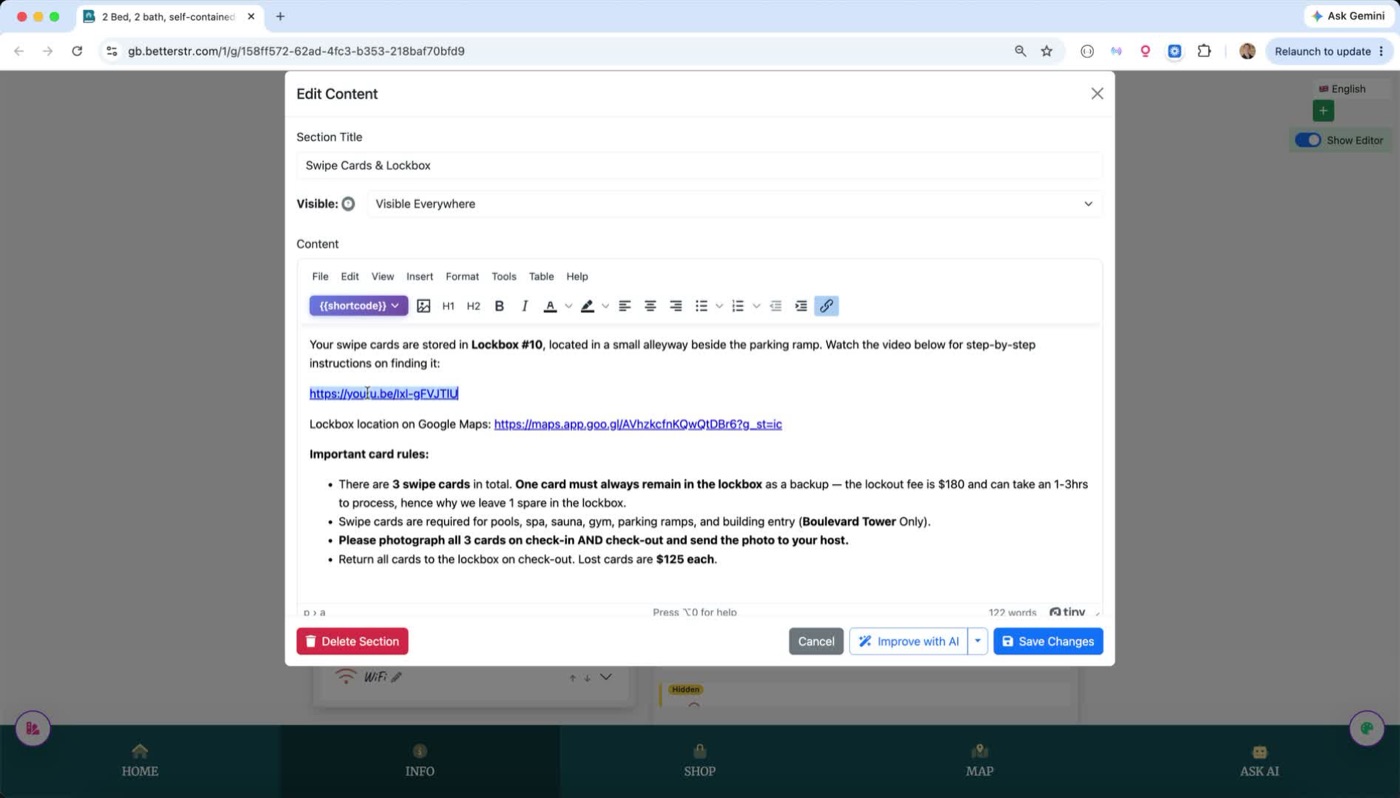
- Place your cursor where the video or document should sit.
- Paste the link (for example
https://youtu.be/...) and press Enter. - Check the link turns blue and underlined. That means the editor has recognised it as a link, which is what the guidebook looks for.
- Click Save Changes.
That’s it. The saved section shows the video player in place of the link. The same paste-and-save routine works for every link type below.
Step 3: PDFs and documents
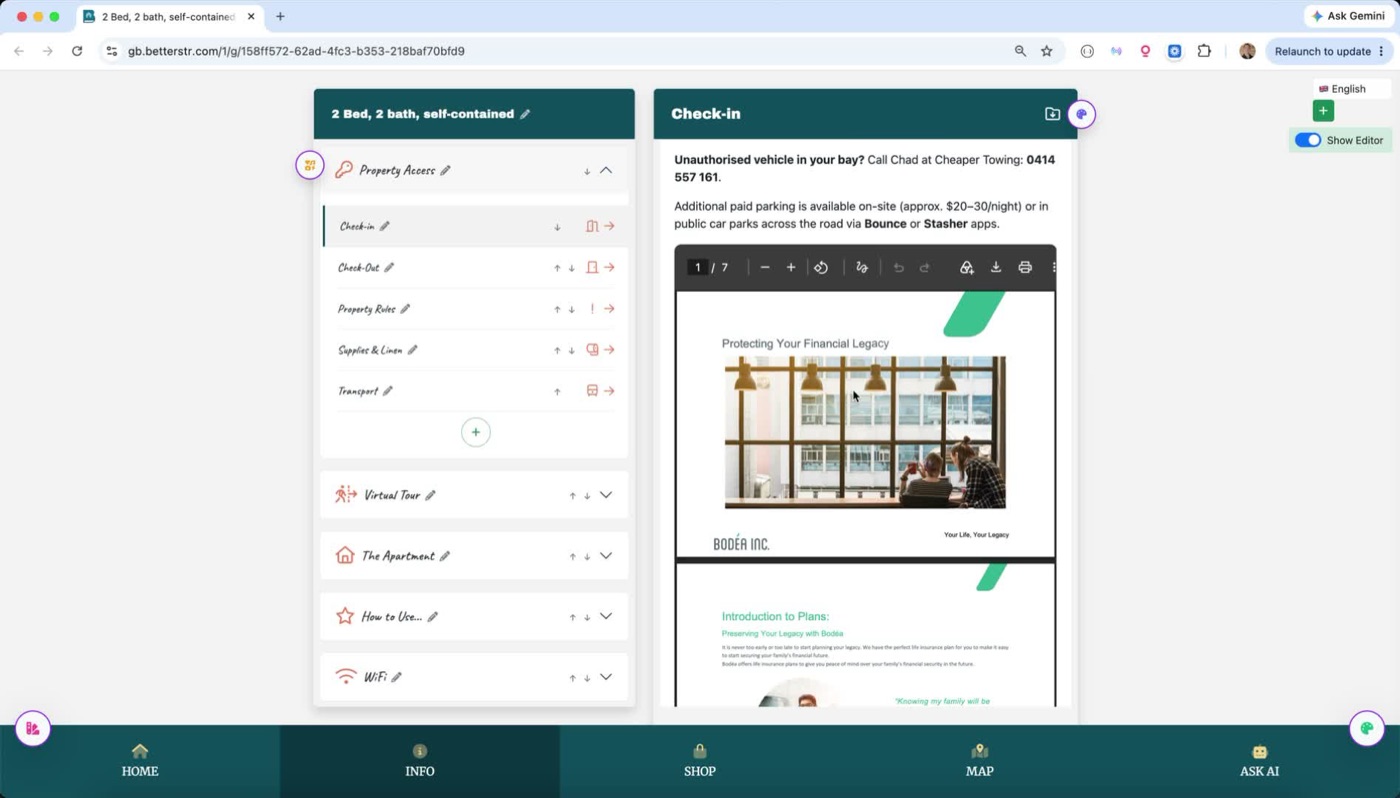
Upload the PDF to Google Drive, Dropbox or OneDrive, copy its share link, and paste it into the section the same way. When you save, the section shows a scrollable preview of the document with an Open in new tab link underneath, so guests can also download or print it.
Which links work
| Paste a link from | Guests see | Plan |
|---|---|---|
| YouTube (normal, Shorts, youtu.be short links) | YouTube player | Free |
| Vimeo (including unlisted links) | Vimeo player | Free |
| Google Drive file, or a Google Doc, Sheet or Slides | Google preview | Premium |
| Dropbox share link to a PDF | PDF preview | Premium |
| OneDrive share link to a PDF or Office file | Microsoft preview | Premium |
| Canva design (view link) | Canva presentation | Premium |
Google Maps share link (maps.app.goo.gl/... or a full Google Maps URL) | Interactive map with the pin | Premium |
Any direct link ending in .pdf | PDF preview | Premium |
Make sure guests can actually open the file
- Google Drive: right-click the file, Share, and set General access to Anyone with the link. A file that is still restricted shows guests a sign-in prompt instead of a preview.
- Dropbox: use Share → Copy link. The normal share link (ending in
dl=0) is fine. - OneDrive: use Share → Copy link with the link set to Anyone. Both the short
1drv.mslinks and olderonedrive.live.comlinks work. - Canva: in the design, choose Share → More → Public view link. Edit links do not embed.
- Google Maps: find the place in the Google Maps app or website and tap Share → Copy link. The short
maps.app.goo.gllink it gives you is all you need. Guests get an interactive map with the pin, plus an Open in Google Maps link for directions. - Adobe Acrobat share links (
acrobat.adobe.com/id/...) cannot be previewed inline because Adobe blocks it. They stay as a normal link that opens in a new tab. If you want a preview, host the PDF on one of the services above instead.
Good to know
- Embeds load lazily. A section with several videos or documents does not slow the guidebook down, because each player only loads when a guest scrolls to it.
- On phones, direct PDF links open in Google’s document viewer because mobile browsers cannot show PDFs inside a page. The Open in new tab link is always there as a fallback.
- If a pasted link is not underlined, put the cursor at the end of it and press Space or Enter, or select the text and use the link button in the toolbar.
- Only plain links are converted. A link wrapped around an image is left alone, so you can still use image buttons that open a file.
Video is free, document previews are Premium
YouTube and Vimeo links embed as a player on every plan.
Document previews (Google Drive, Dropbox, OneDrive, Canva and direct PDF links) and Google Maps embeds are a Premium Guidebook feature. On the free plan your guests simply see the link, which still opens the file in a new tab. Nothing breaks, it just isn’t previewed inline.
As the owner you always see the preview in your own guidebook, with a purple Premium preview note under it. Switch off Show Editor (top right) to see exactly what a guest on your current plan sees. To unlock previews for guests, add Premium Guidebook from Add-ons.