Ask AI is the chat assistant built into your guidebook. Guests tap Ask AI in the guide, type a question in their own words, and get an instant answer written from your guide. You “train” it in two ways: by writing AI Only sections that the assistant can read but guests never see, and by checking the Guide gaps card to find the questions your guide couldn’t answer.
Ask AI is a Premium Guides feature
Ask AI answers guests while you have an active Premium Guides subscription, or during your free trial. On the free plan you’ll still see the Ask AI button with an Upgrade badge when you view your own guide, but guests won’t see it. You can add Premium from Add-ons.
What Ask AI Reads
Every time a guest asks a question, the assistant reads:
- Every section of your guide that is set to Visible Everywhere
- Every section set to AI Only (Hidden from Guests)
- Your property details from your PMS, such as the address, amenities and room layout
- The places on your property map, with the ones you’ve tagged recommended first (see Adding locations to your property map)
- Your direct booking link, if you’ve set one, so it can answer “Can I book again?”
If a property doesn’t have its own guide yet, the assistant reads your Default Guide instead, the same one your guests see.
The assistant does not read sections set to Reservation Link Only, Mobile TXT Only or Reservation Link & Mobile. That keeps door codes and other restricted details out of its answers.
What is “AI Only” Content?
AI Only content is hidden, behind-the-scenes information used to train the Ask AI chat bot. Anything you mark as AI Only is never displayed to guests and does not appear in your public guidebook.
This allows you to:
- Keep your guidebook clean and guest-friendly
- Avoid publicly listing edge cases, faults, or uncommon scenarios
- Still give guests accurate, helpful answers when they ask unexpected questions
Think of it as private knowledge for your AI assistant, not guest-facing instructions.
How to Add AI Only Content
AI Only is a visibility setting, so any section of your guide can be made AI Only. You set it in the guide editor, right on your guide.
- Open your property’s guide while logged in to BetterSTR and make sure Show Editor (top right) is on.
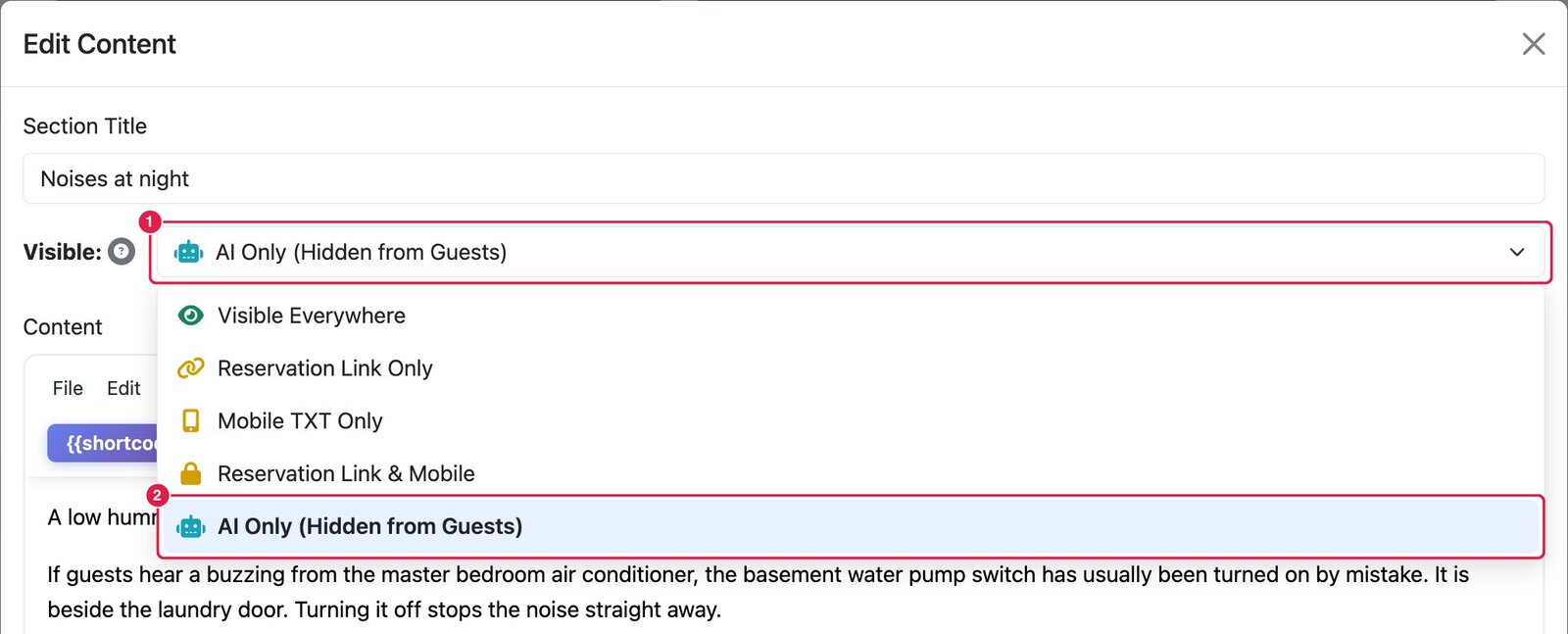
- Open an existing section and click Edit Content under it. (You can also add a new section with a + button; its Visibility menu has the same options.)
- Give it a clear Section Title, for example “Noises at night”.
- Click the Visible menu (1) and choose AI Only (Hidden from Guests) (2).
- Write what you want the assistant to know in the Content box.
- Click Save Changes.
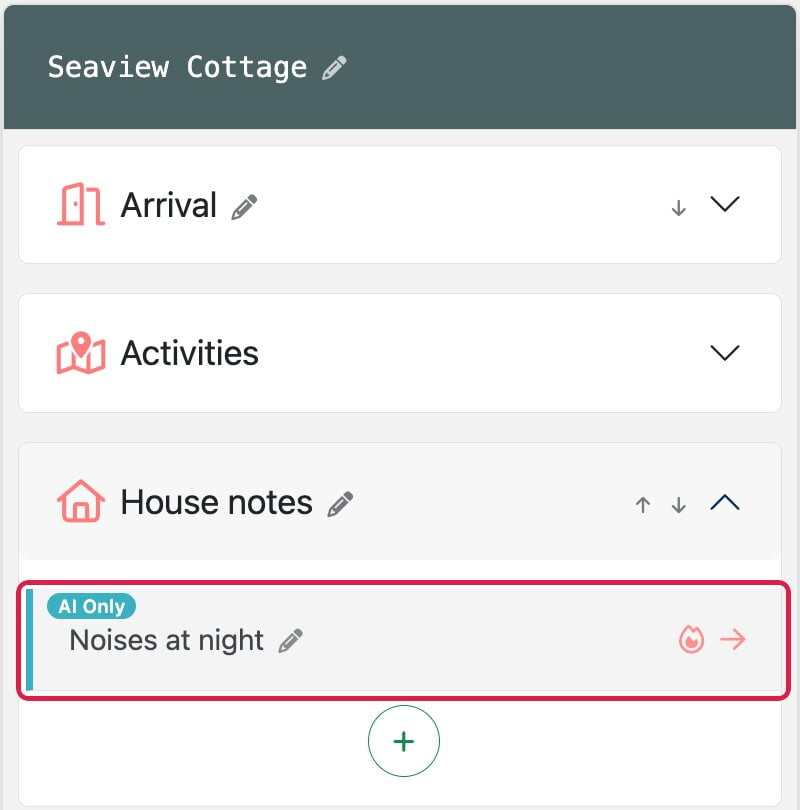
While the editor is on, AI Only sections stay in your guide with a teal AI Only badge so you can find and edit them. Guests never see them. Turn Show Editor off, or use View as guest, to check what guests see.
AI Only content is used by the Ask AI chat bot straight away. There is nothing to publish or retrain.
If your guide has more than one language, each language has its own sections, and the assistant reads the version in the guest’s language. Add your AI Only sections to each language version too. See Multilingual Guidebooks for International Guests.
What Guests See
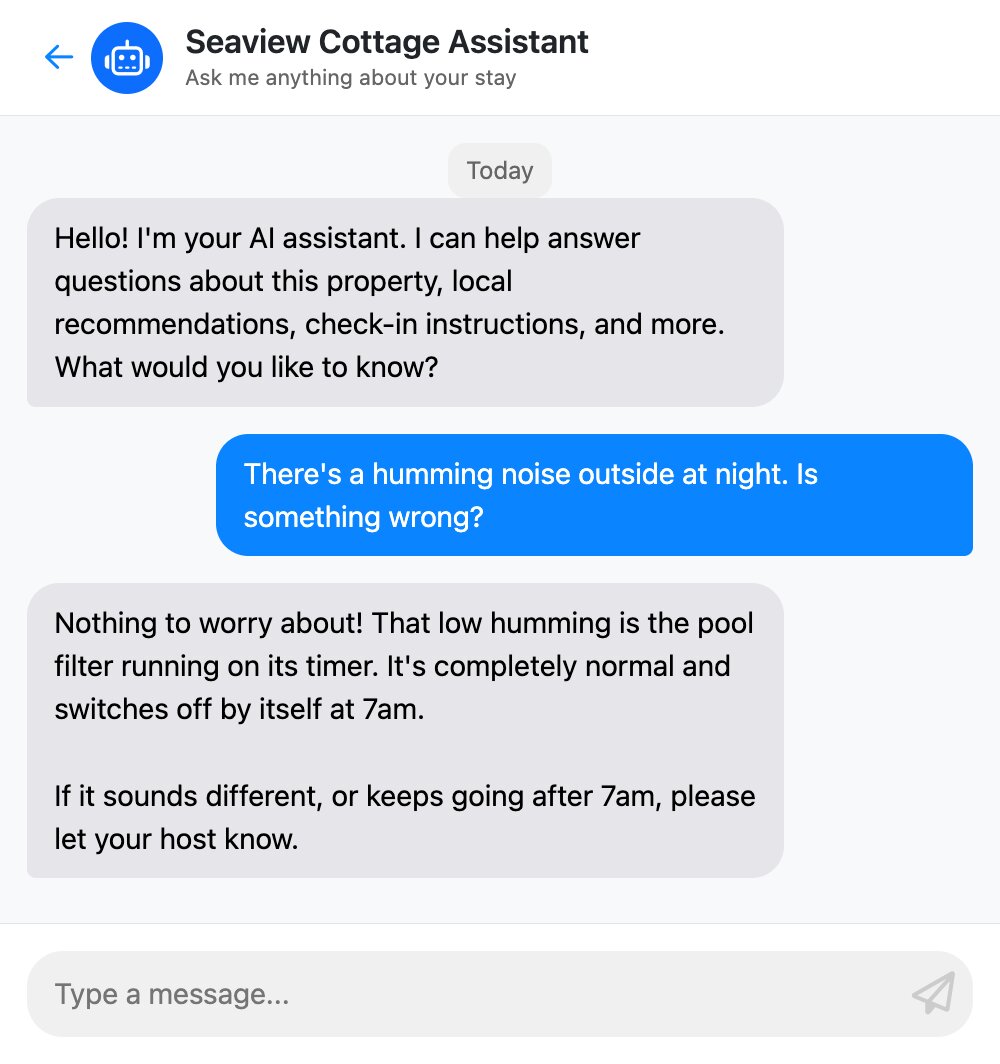
Guests open the assistant from the Ask AI button in your guide. It answers from your guide, including your AI Only sections, without ever showing those sections. Guests can ask short follow-ups such as “where is it?” and the assistant remembers what they were talking about. If the guide doesn’t have the answer, it says so and suggests they contact you.
Find the Questions Your Guide Couldn’t Answer
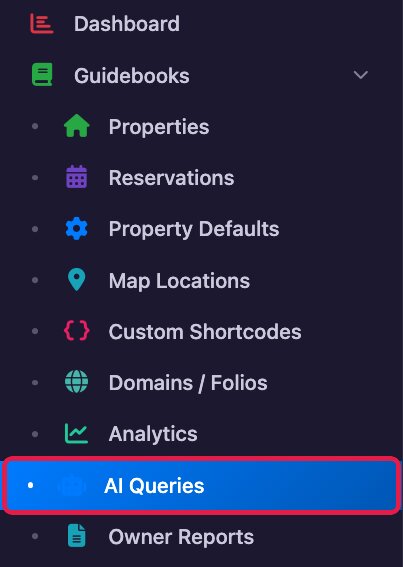
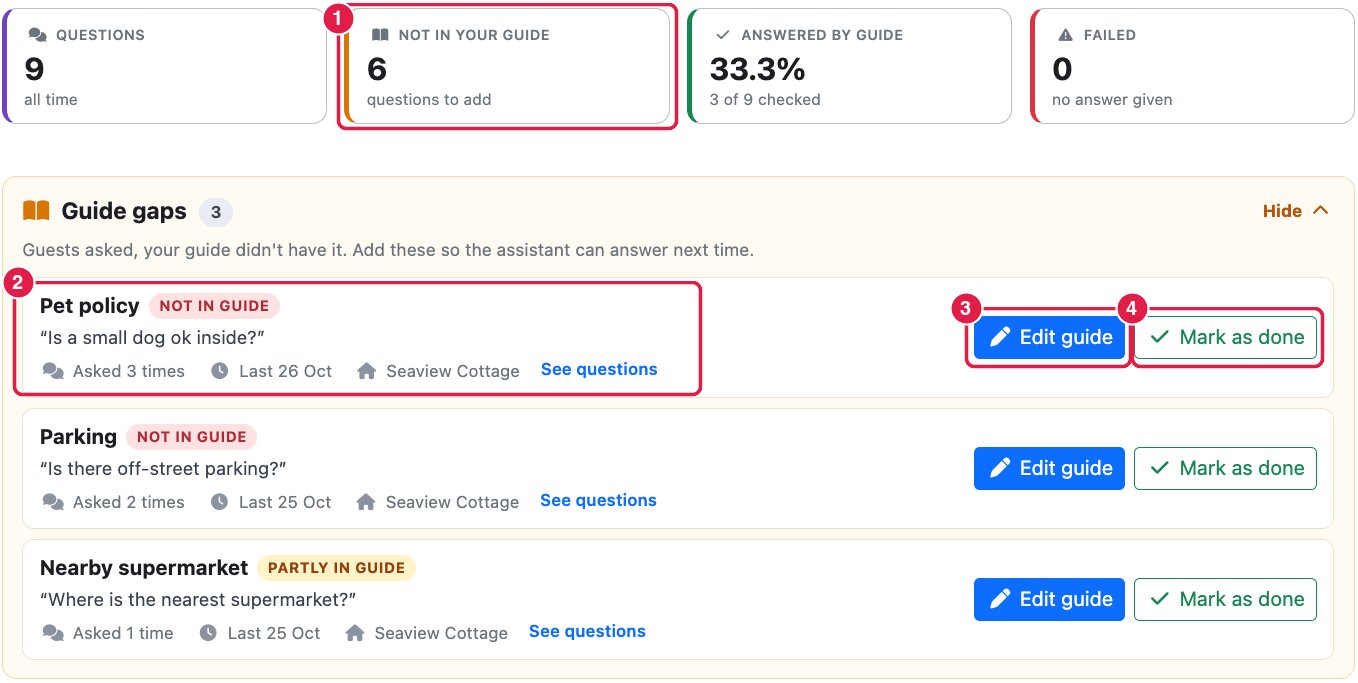
Every question guests ask is saved, and the assistant notes whether your guide had the answer. Open Guidebooks → AI Queries in the left menu to see them.
At the top of the page:
- (1) Not in your guide counts the open questions your guide couldn’t fully answer. Click it to list them.
- (2) The Guide gaps card groups those questions by property and topic, most asked first. Each topic shows a recent question, how many times it was asked, and whether it was Not in guide or Partly in guide. Click See questions to read every question on that topic.
- (3) Edit guide opens your guide, at the section the answer belongs in when the assistant could tell. If the property uses your Default Guide, the button says Edit default guide, and your change shows on every property that uses it.
- (4) Mark as done clears the topic once you’ve added the answer, or if it isn’t something you want to answer. If guests ask about it again, it comes back.
Below the card, Conversations lists every chat, newest first. Questions from a guest’s own reservation link are grouped by their reservation. Click View chat to read the whole conversation and the assistant’s answers.
When you fill a gap, decide where the answer belongs: in a normal section if every guest should see it, or in an AI Only section if you only want the assistant to know it.
When Should You Use AI Only Content?
AI Only content is ideal for:
- Edge-case questions
- Rare issues or temporary quirks
- Explanations that could worry guests if shown publicly
- Internal knowledge normally shared verbally or via message
If you’ve ever thought “I don’t want this in the guidebook, but guests still ask about it” — this feature is for you.
Practical Examples & Use Cases
Example 1: Strange Noises or Behaviours
Guest question:
“I hear a buzzing noise coming from the master bedroom air conditioning unit.”
You may not want a public guidebook section titled “Buzzing noises in bedrooms”.
AI Only content you could add:
If a buzzing noise is heard near the master bedroom AC, it’s usually caused by the basement water pump switch being turned on accidentally. This switch is located near the laundry. Turning it off will stop the noise immediately.
AI response to the guest might be:
That buzzing sound is usually caused by an internal pump switch being turned on by mistake. You can resolve it by checking the switch near the laundry and turning it off. If it continues, please let us know and we’ll help right away.
Example 2: Power Trips or Electrical Quirks
Guest question:
“The power went out in the kitchen but nowhere else?”
AI Only content:
The kitchen has its own safety breaker due to high-load appliances. If the kettle and microwave are used at the same time, the breaker may trip. The switch is located in the hallway meter box and can be reset safely.
This avoids alarming guests with electrical details in your guidebook, while still giving them reassurance and a fast fix.
Example 3: Heating, Hot Water, or Appliance Confusion
Guest question:
“The hot water seems cold but only in one bathroom.”
AI Only content:
If only one bathroom has cold water, the tempering valve may have been adjusted accidentally. This usually corrects itself after a few minutes, or can be reset by running the tap for 2–3 minutes.
Example 4: Sounds, Smells, or Environmental Factors
Guest question:
“There’s a humming noise outside at night — is something wrong?”
AI Only content:
A low humming sound at night is typically the pool filtration system running on a scheduled cycle. It is normal and will turn off automatically in the morning.
This prevents unnecessary worry while still being transparent when asked.
Example 5: House Rules You Don’t Want to Sound Harsh
Guest question:
“Can we move the outdoor furniture inside?”
AI Only content:
Outdoor furniture should not be moved indoors as it can damage flooring. If guests ask, explain this politely and suggest alternative seating options already available inside.
What Not to Put in AI Only Content
The assistant may repeat anything in an AI Only section to any guest who asks, including someone browsing your public guide before they’ve booked. Avoid using it for:
- PIN codes, lockbox codes, or access details
- Wi-Fi passwords
- Anything you would not want shared with a stranger
Put those in a section set to Reservation Link Only, Mobile TXT Only or Reservation Link & Mobile instead, not AI Only. See Restrict Sensitive Content Like PIN Codes or Lockbox Info.
Best Practices for Writing AI Only Content
- Write in plain, natural language
- Explain why something happens, not just what to do
- Include reassurance where possible
- Think of it as coaching a helpful, calm property manager
- Check AI Queries every week or two and fill the top Guide gaps
You don’t need perfect wording — the AI will adapt.